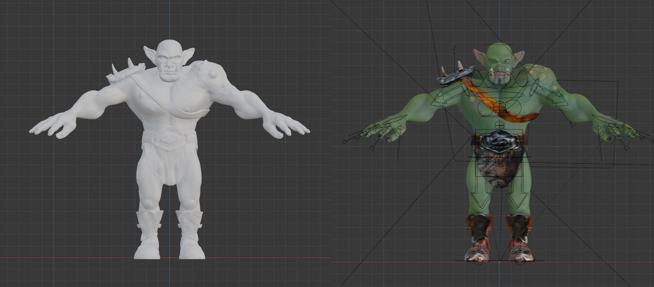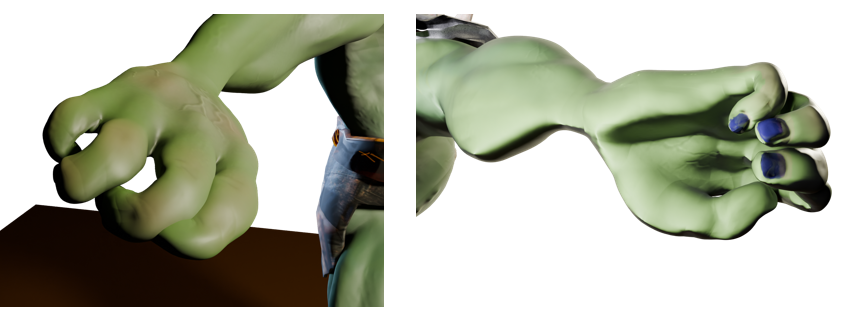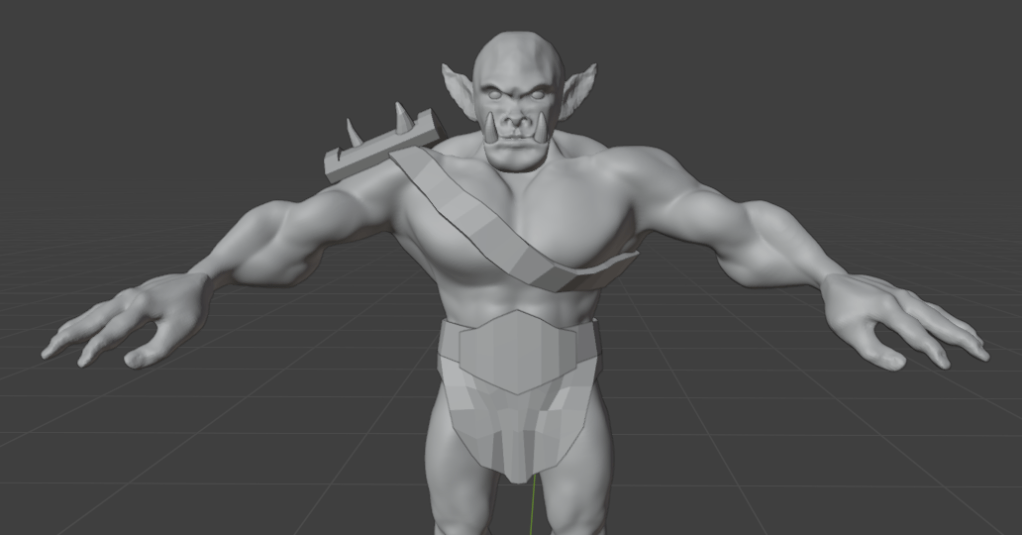
Tag: Blender

I’ve been learning how to use Blender for a while. I will post my progress as I try to make a proper go of getting good.

  • Blender part 7 – Gamedev I

    Blender part 7 – Gamedev I

    This is another paid-for course, again with Grant Abbitt as the tutor. This took me a while to complete, there was a lot to learn. But, again, Grant took us through everything and explained why things were being done. I got the course through Gamedev.tv, there are quite few other courses to look at, mainly for game design.

    First we learned how to add shapes (mainly blocks) to a scene and add textures to the blocks. This is the sort of thing that familiarises the user with the setup of Blender and how to change things. It’s also useful if you’ve already done a course covering these things but forget quite easily.

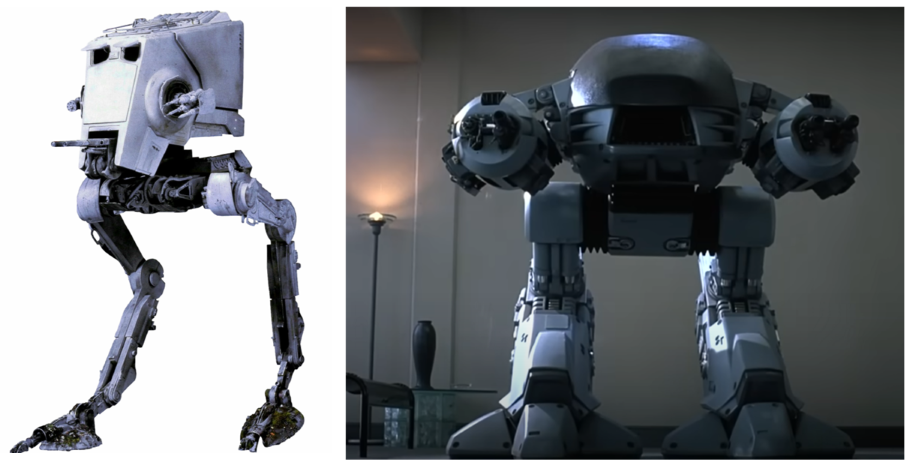
    Secondly, we made a ‘mech’. This was a stylised all-terrain mobile gun and sort of a cross between ED 209 from Robocop and the two-legged transports in Star Wars.

    Two images. On the left, a white all-terrain walker from Star wars. One the right, ED 209 from Robocop.
    A comparison of the two-legged all terrain walker from Star Wars (left) and ED 209, the enforcement droid from Robocop. The mech we designed is inspired by these machines.

    The build was an exercise in hard-body modelling, one of the things I wanted to learn so that I could design things for 3D printing. Hard-body modelling is one of those things that you learn by doing. This became apparent as Grant guided us through the build and showed how to get from a cube to the cockpit by cutting and shaping in a particular order.

    A chassis and legs came next, then the guns.

    Grey scale images of a cockpit, then with added legs and finally added gun turrets.
    How the mech was assembled. The cockpit came first, then the chassis and legs, and finally the guns

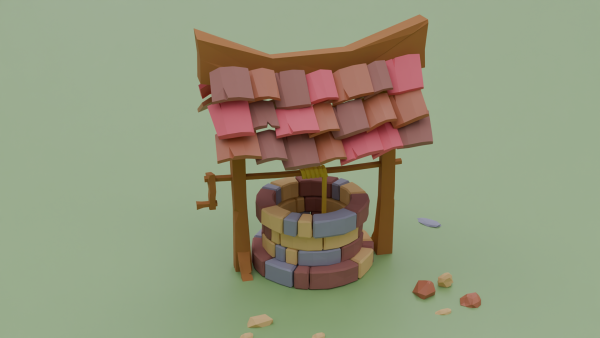
    It’s a very angular look, this is done on purpose to achieve a ‘low poly’ aesthetic. The number of polygons (individual faces) affects how quickly a computer running a game can operate. You want the computer to be able to present good gameplay without a fiddly, highly detailed object slowing the computer down. The ‘low poly well’ I made earlier in this series is another example of this idea.

    Rendered image of a low poly well
    A low poly well made using as few ‘faces’ as possible to get a nice-looking but quick to render object.

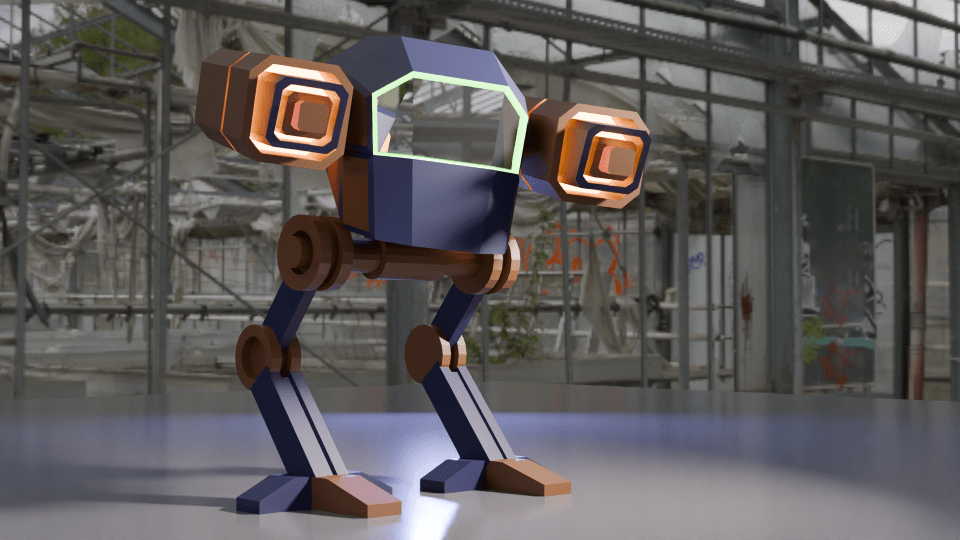
    The artistic side is the painting. We can add colours and textures to any ‘face’ in the model, so that the guns have a range of colours and glowing parts and there’s a green glow around the windscreen.

    Stylised two-legged mobile gun.
    Completed mech with colouring and glowing guns. The green glow around the windscreen is a classy touch.

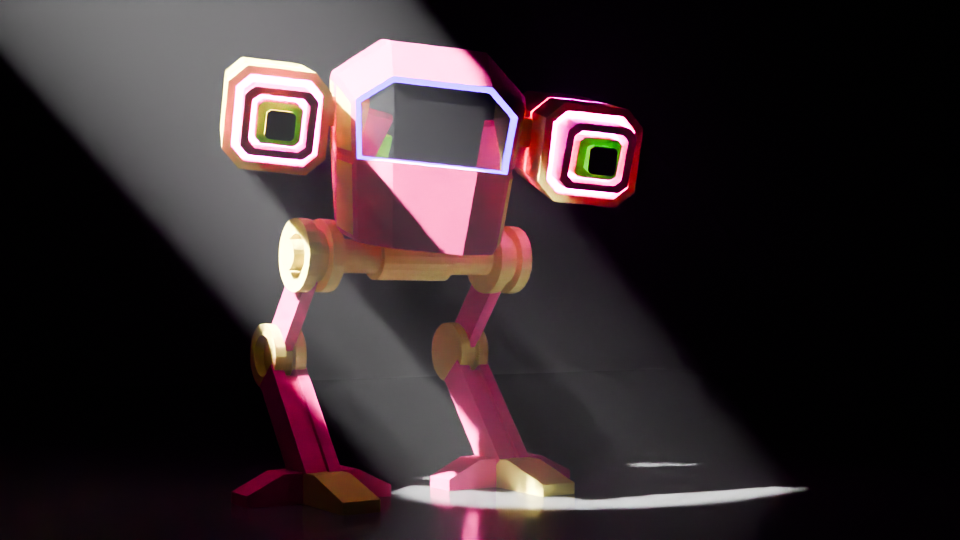
    Setting the scene is another arty part and it’s best to get it right to show off the work. I changed the colours, because the sort-of camouflage was a bit dull, so I thought some vibrant colours would work well1.

    Stylised mechanical gun, a two-legged machine with pink and yellow colouration.
    An alternative to the original mech, this one is pink and yellow and standing in a spotlight.

    Finally, I made a more fabulous version, with glitter (which took a while to learn how to do). I added a camera circle so that the true magnificence of the final design can be appreciated.

    Fly-round of the glittery mech.

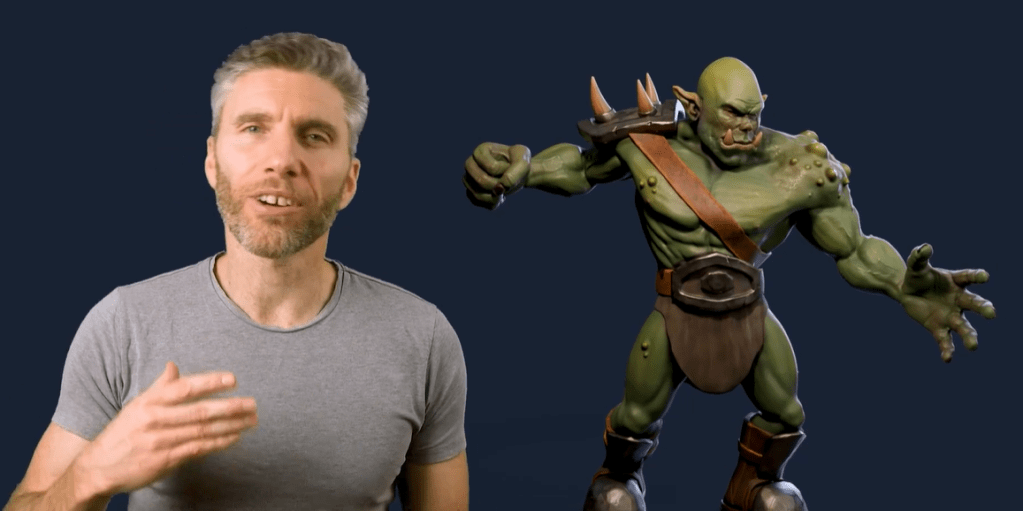
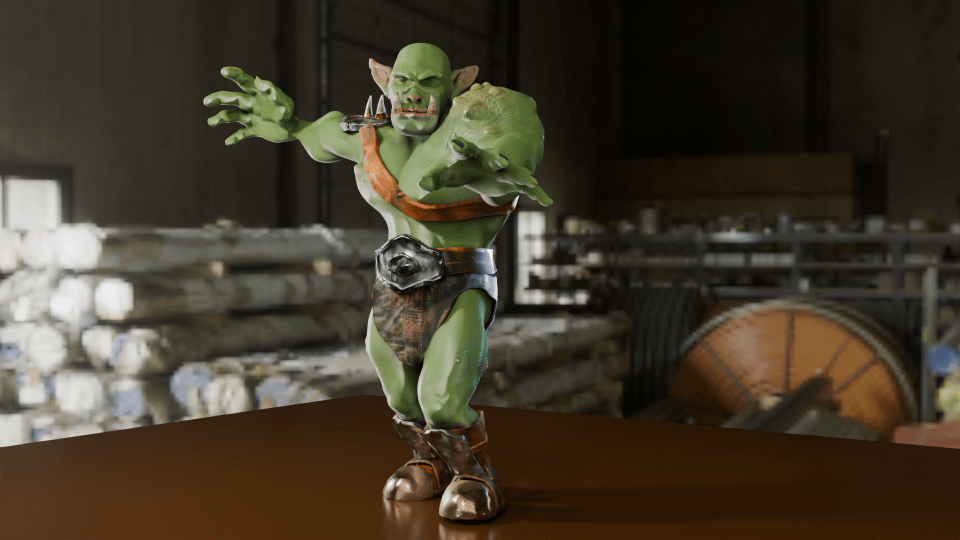
    The next parts of the course leads up to sculpting, colouring and animating an orc. This took a few weeks to complete, I’ll post the progress in a couple of separate posts.

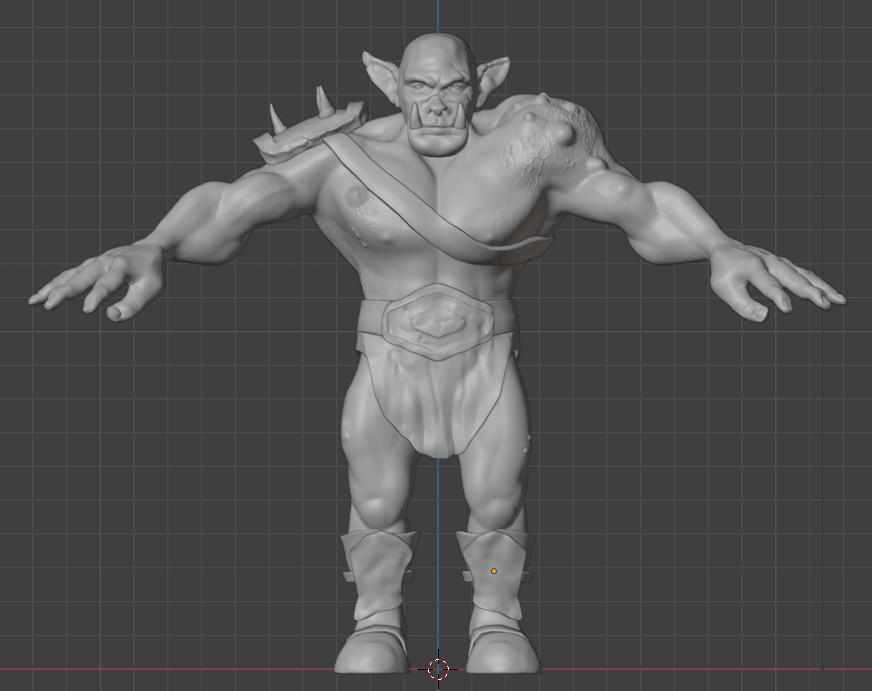
    A man talking with an orc behind him
    Grant Abbitt, the tutor for the course I’m doing, and the orc that we will spend the next few weeks sculpting.
    1. Work well for image purposes. Maybe not so well on a battlefield. ↩︎
  • Blender – playing with light

    Blender – playing with light

    Having finished the course on Udemy I had a look round for the next thing to have a go at. In the mean time I’ve done a few more tutorials from YouTube and been mostly pleased with the results.

    A minor issue with the videos is that the Blender software has been updated many time over the years and some features have moved, so I do hit a wall occasionally.

    Luckily, the internet is full of advice and there is always someone who has had the same problem.

    One such issue has centred on Rendering. This is the process of getting from the grey blobs and lines, to coloured images and finally to a .png file or a usable animation.

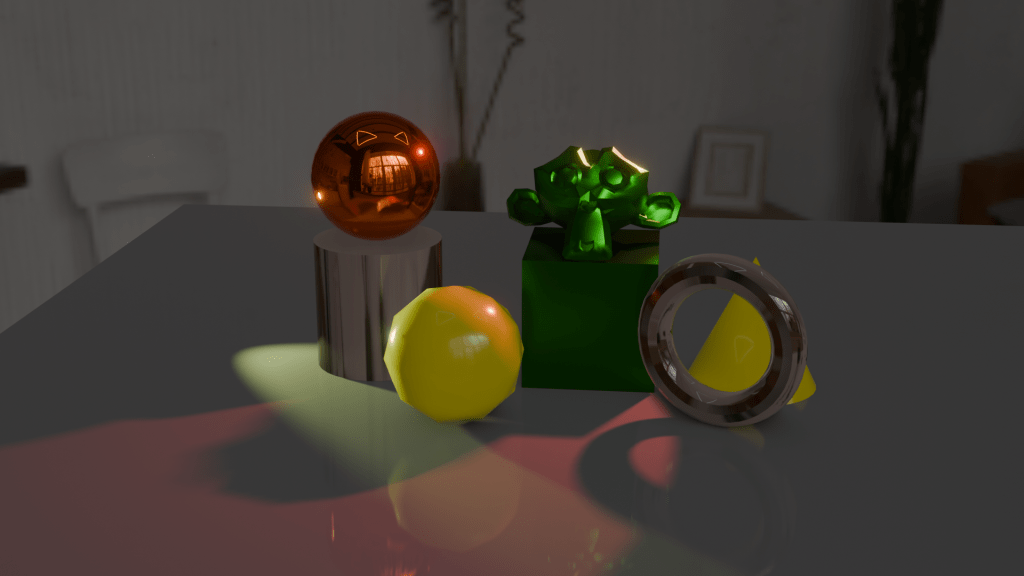
    Some 3D objects rendered using the EEVEE render engine.
    This is a collection of objects rendered using EEVEE. The results are fine, and the image is produced quickly.
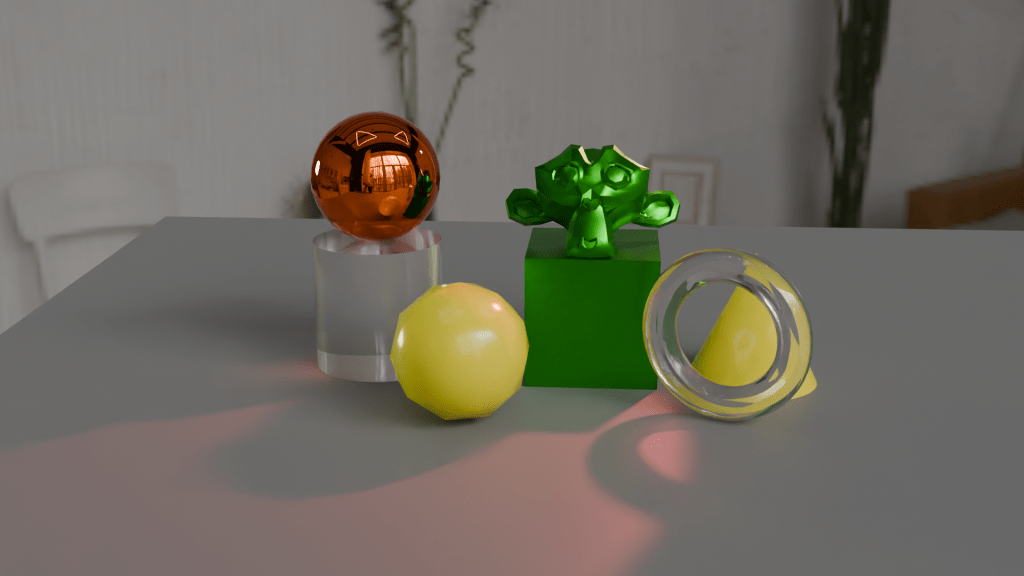
    Some 3D objects rendered using the Cycles render engine.
    This is a collection of objects rendered using Cycles. The results are much better than with EEVEE, especially with the transparent materials. This does take longer to produce an image, though.

    If you look at the glass doughnut in the two images, you can see why cycles is preferred for end results. The light from the yellow pyramid has been diffracted in a realistic way in the Cycles render, but EEVEE doesn’t do as good a job. You can fiddle with the settings to improve matters, but I will leave that for the future.

    The EEVEE render engine (Extra Easy Virtual Environment Engine) is the fast renderer in Blender. It acts as a game engine, so it produces good quality images for the purposes of quickly seeing what you have made.

    For better visuals, you need Cycles, which takes more time to come up with the goods because it cycles through the image properties to perform ray-tracing. This is where the paths of the lights are calculated so that, as in the images above, the light from the yellow cone is refracted in a more realistic way through the glass torus. Reflections also look better in Cycles.

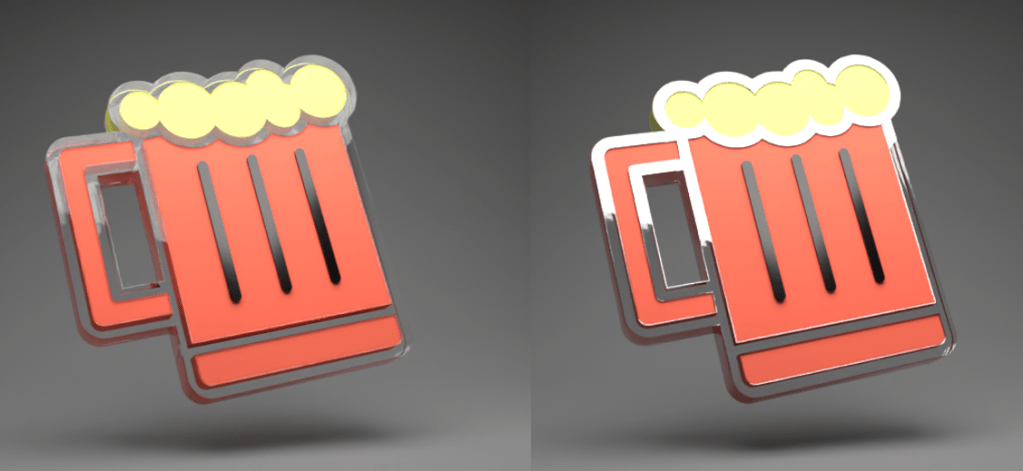
    Fiddling with the settings of the glass will give better results, for example changing the index of refraction (IoR) of the glass will change how the light interacts with the material. I did this for the spinning beer mug, stills are shown below. One has a glass edge (IoR = 1.45), the other has a diamond edge (IoR = 2.5).

    Beer mug logos rendered with different materials as the surround.
    Light behaves very differently when the surround is given the index of refraction of glass (left) and diamond (right).

    You can also use a change in IoR to make different lenses. Since we aren’t concerned with reality there is the potential to make a lens with a IoR of less than 1. Such a thing is not possible (at the moment for visible light1), but since Blender computes light rays we can have fantasy physics.

    Changing the refractive index of the surround to the beer mug does odd things to how it looks. The position of the highlights changes, as does the brightness of the reflections. You can go further and change the index of refraction for each wavelength of light.

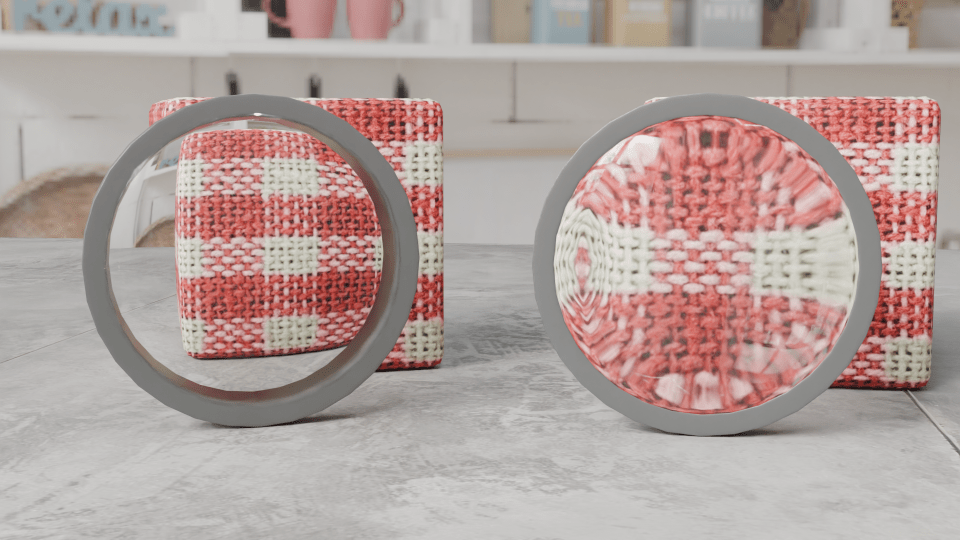
    So I made two lenses, both biconvex like the lens of the eye. In the picture below, the one on the left has an IoR of 0.8, the one on the right’s IoR is 1.45 (glass).

    Two lenses in front of gingham cubes. The left side one is a reducing lens, the right hand one magnifies.
    Demonstration of the effect of refractive index on lens behaviour. Both lenses are biconvex, but the one on the left has a refractive index of 0.8 (impossible (at the moment)), the one on the right simulates glass and magnifies the block behind it.

    I’m not sure what application this will have in 3D modelling, but it is interesting to muck around with what’s possible.

    1. This has been done for microwaves using metamaterials, but that’s not relevant to what I’m talking about here. ↩︎
  • Blender part 6 – meet Bob

    Blender part 6 – meet Bob

    Sculpting is the name of the game for the final part of the Udemy course.

    It’s like virtual clay with the advantage that if you muck up, you can just press ctrl-z to go back.

    We start with a blob of virtual clay that we use various tools (with exciting names like ‘Grab’ and ‘Clay’) to pull and push the material around.

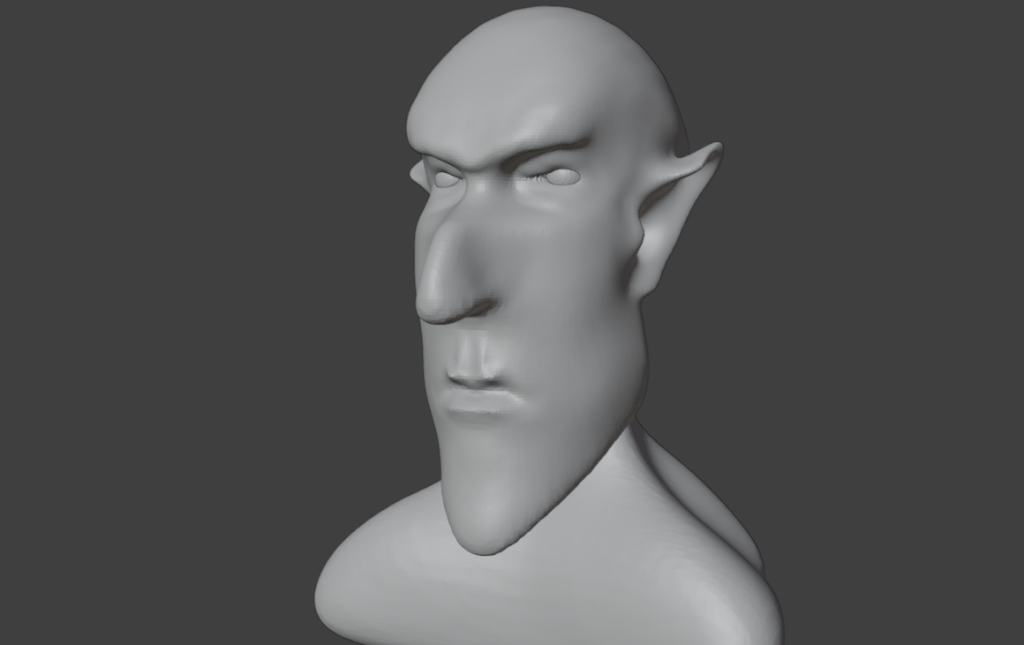
    Got some personality now. The eyes help.

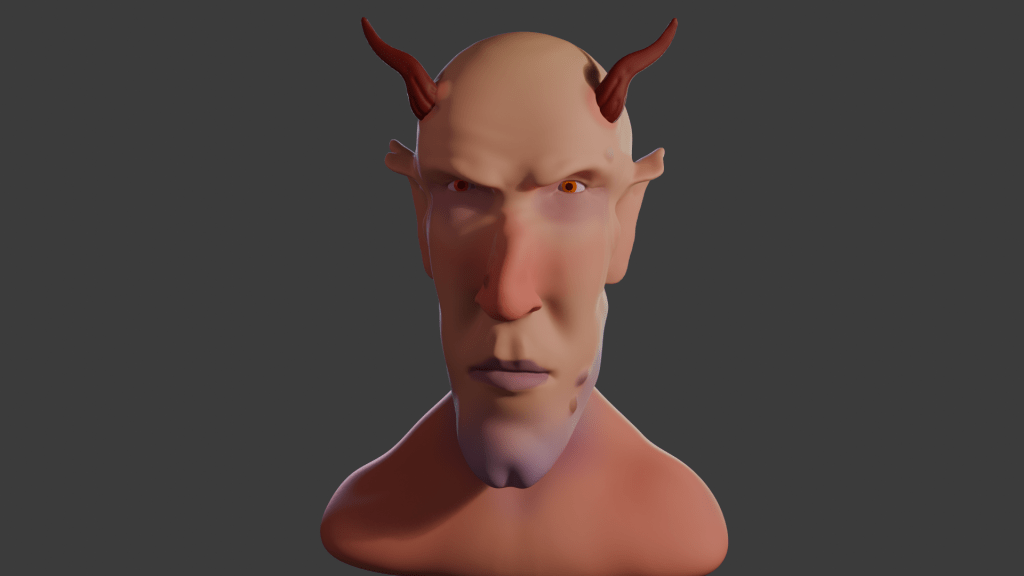
    The idea is to get an exaggerated face, suggestive of a creature not of this world. Grant shied away from the word ‘demon’, but there is something demonic about the face that’s emerging.

    The lips are made by pinching the clay and the philtrum similarly, but also pressing into the clay to give a more realistic look.

    The eyes are just spheres. Getting them in the correct place needed a bit of reference to real figures. I never knew that the average face is 5 to 6 eyeballs wide.

    Adding and shaping the ears was fun.

    Ears are essential, of course. These started out as discs but grabbing, pushing and pinching yielded Spock-like ears for that authentic demonic / otherworldly appearance.

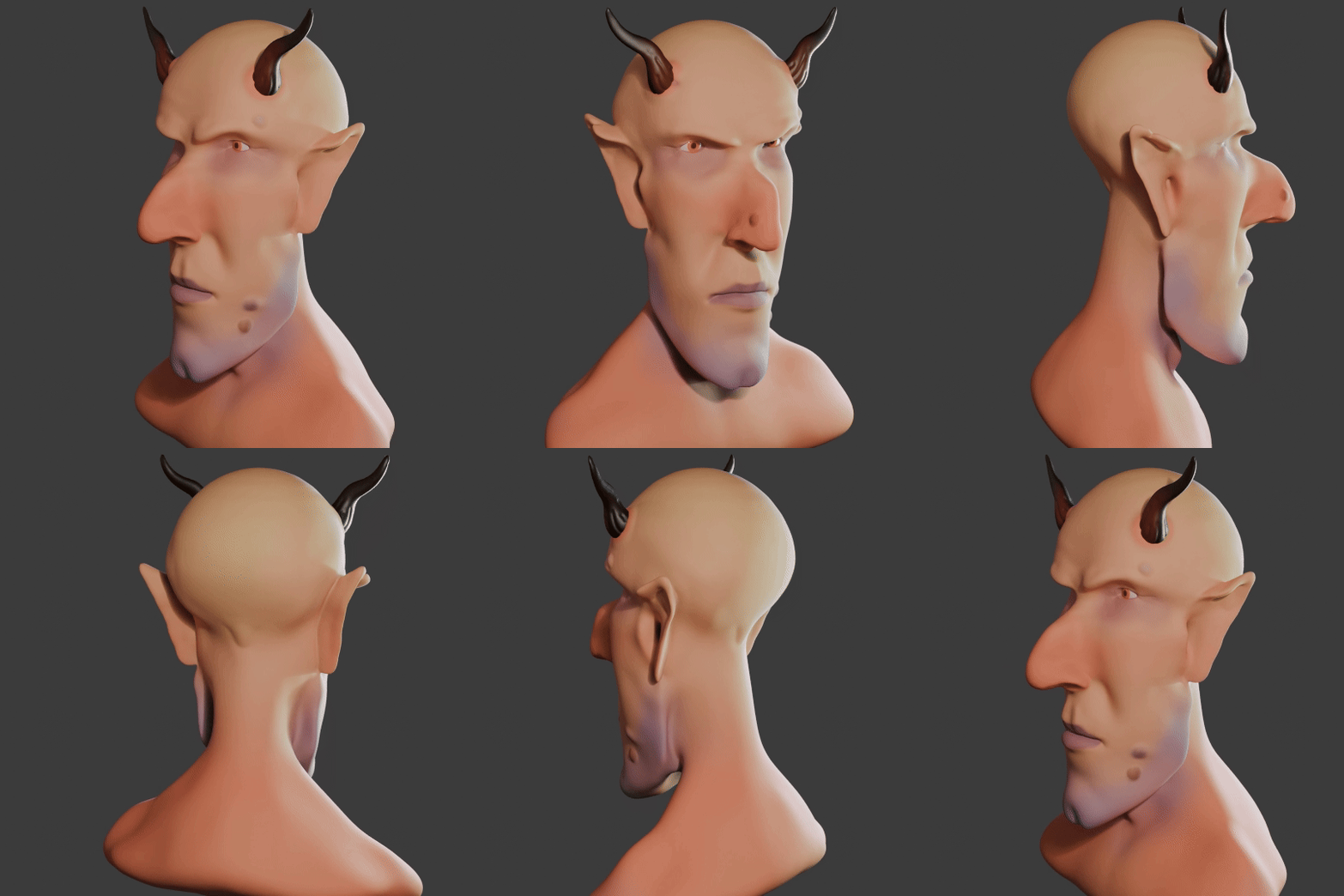
    Some final additions include giving Bob (as he was now called) a cleft chin and horns. Warts, too – a nice double set, just like Lemmy out and off of Motörhead had. And horns, which Lemmy never had.

    Fully coloured Bob, with a dimple in his chin, Lemmy warts, horns and some back lighting.

    The clay can be painted on directly, using a variety of brushes and all the colours you can wish for.

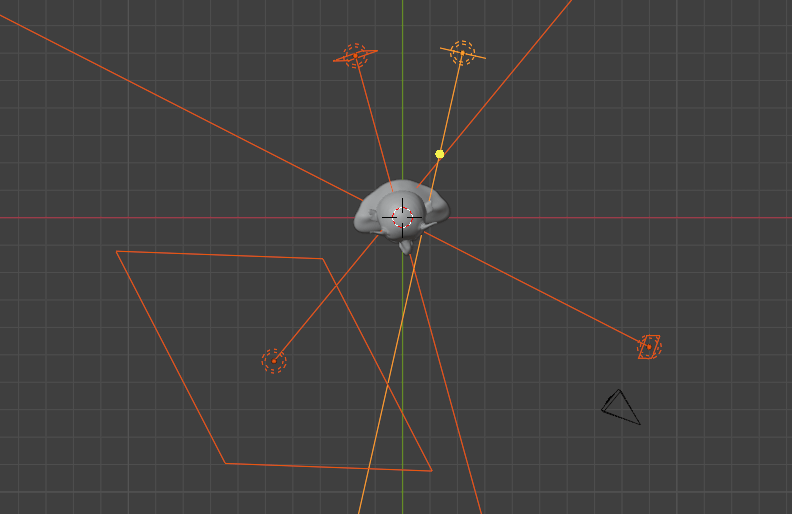
    An important part of the visual set-up is lighting. Grant didn’t shy away from this part, which too many tutors do. There are four lights1 for this image, two back lights an area light and a main light.

    Overview of the lighting set-up for the final rendering of the demon head. A small, intense area light and a large, diffuse area light at the front and two small spot lights at the back.
    Lighting setup around Bob for the final render. Four lights in all of varying power and size. the little black triangle at half past four is the camera.

    Unlike a real studio, you’re not restricted in how many lights, what colours and how bright you want the lights. Virtual clay doesn’t melt under your 3000 W spotlight.

    The finished Bob. I didn’t know how to get the camera to to a 360 around the object, so I had him rotate instead.

    I also gave Bob a nick in his right ear. I’ve had the same mark since I was five (or so), when I ran into a door frame and gashed my ear. There was much blood.

    I tried adding an earring, but that didn’t look right somehow. Although I can make a gold-looking thing with no problem, the earring sat in the lobe like a toad on a drum.

    The whole thing took me about 5 days, a couple of hours a day.

    If I think on, I might tweak a couple of things. The back of his jaw is a bit odd. I might give him a head tattoo, I think Snaggletooth would work well.

    Motorhead's 'Snaggletooth' logo, a gorilla-wolf-dog combination with boar tusks, according to the designer, Joe Patangno.
    Motörhead’s ‘Snaggletooth, the War-Pig’ logo, designed by Joe Petagno for their first album, Motörhead. It featured the song ‘Mötörhead’, a cover of the song ‘Motorhead’ by Hawkwind.

    So that’s the first paid-for course done. I’ve not really covered much in the way of Blender for 3D printing, or decided what it is I want to do with the app. I had in mind doing fluid simulations, as a visual aid to rheology training.

    1. Insert Cpt Picard reference here ↩︎
  • Blender part 5 -animate!

    Blender part 5 -animate!

    UV shading and animation!

    UV shading sounded scary when I first watched videos on the subject, but having Grant to hold your hand helps. As he explained it, a UV map is like making a label to fit on your 3d model as you would for a bottle. Only 3d models are usually more complex (they have challenging topology, as he put it).

    Fitting a flat image of a Spitfire to a model was an interesting exercise. I think the end result was ok.

    Spitfire, modelled in 3D, then colouring applied from a photo using the magic of UV shading.

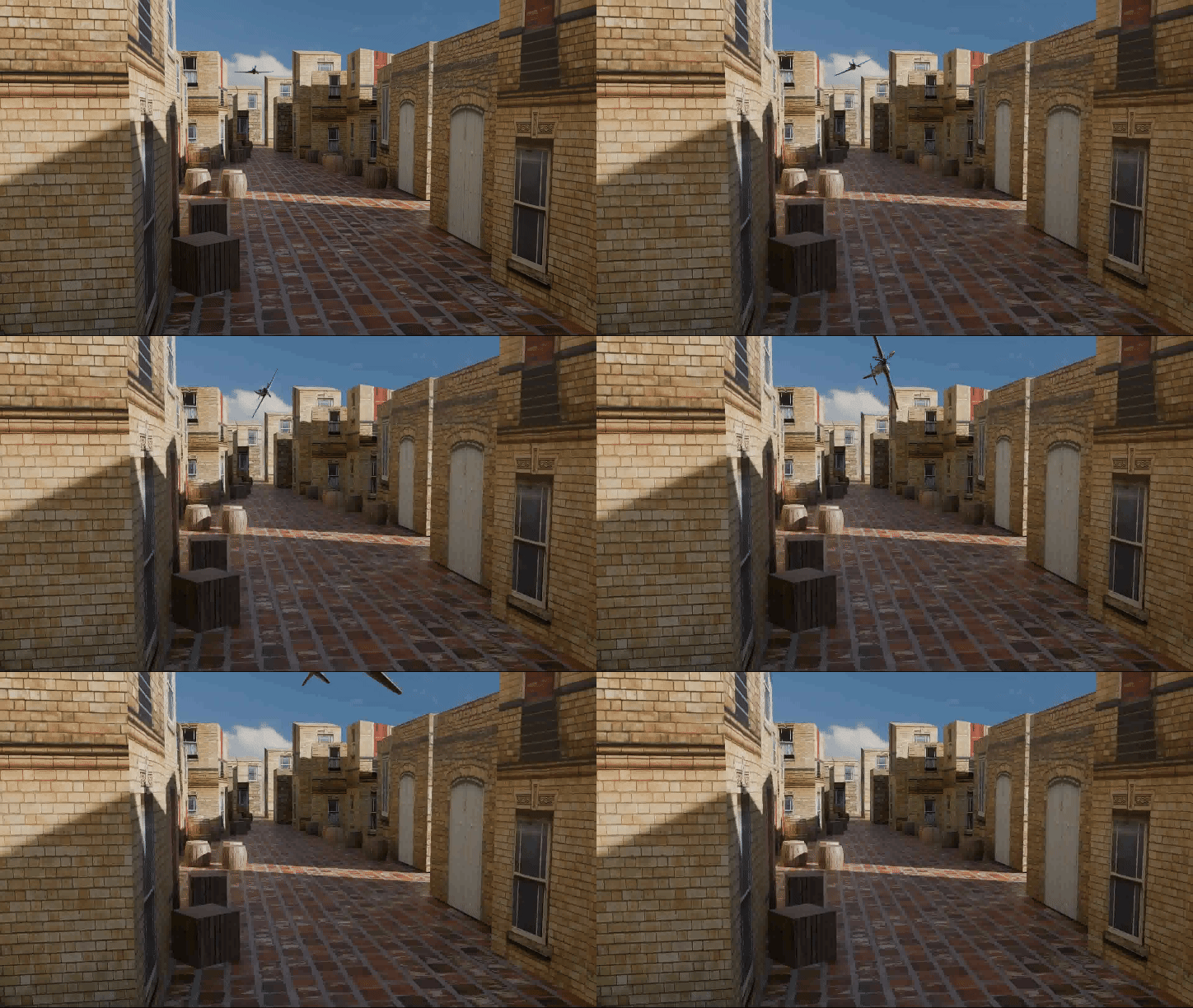
    Then we did some scenery building and basic animation. Having learned how to add images to 3d objects, putting images of buildings onto cuboids and simple shapes was relatively easy. So a basic street could be made.

    Then the Spitfire was added to the scene and we were shown how to make an animation of a flyover. This stretched the capacity of my laptop, it took a while to render but I got a flying plane.

    I added a turn to the plane as it flew over to get the final animation.

    Next, we did some more on animation basics. In Blender, just about any aspect of an object can be animated, so cameras will move, items change colour and all sorts of fun.

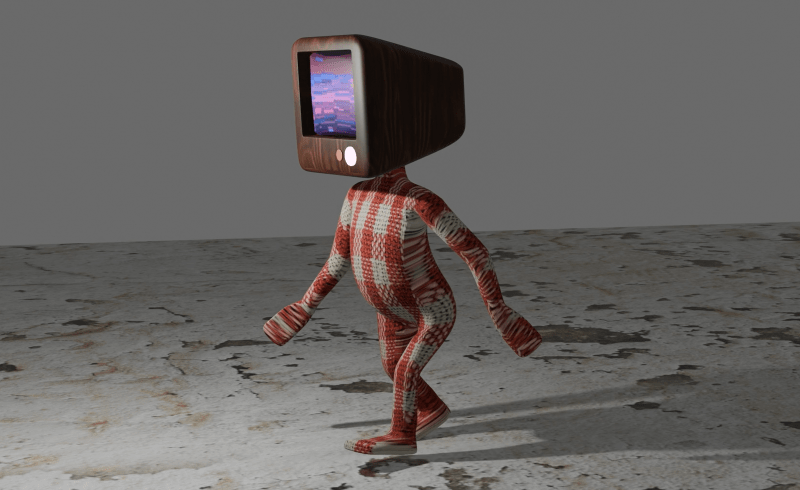
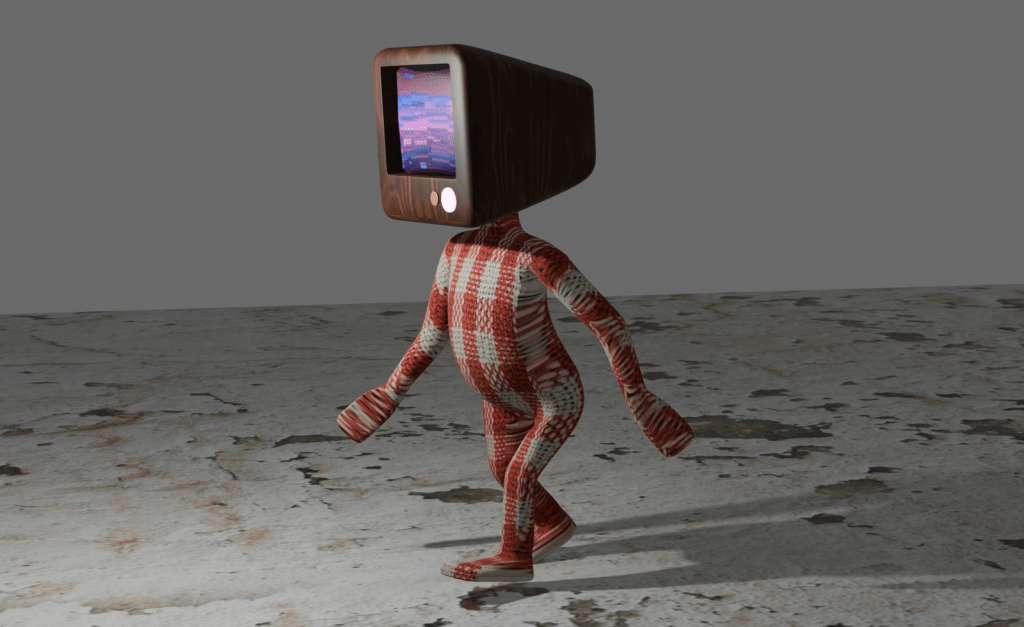
    At the end of this, we built a simple humanoid with a telly for head (as you do) and learned how to animate the figure for a walking motion. As a bonus, we added video to the screen on the face.

    A man with a telly for a head and a lovely gingham suit. His best friend keeps him on his screen.

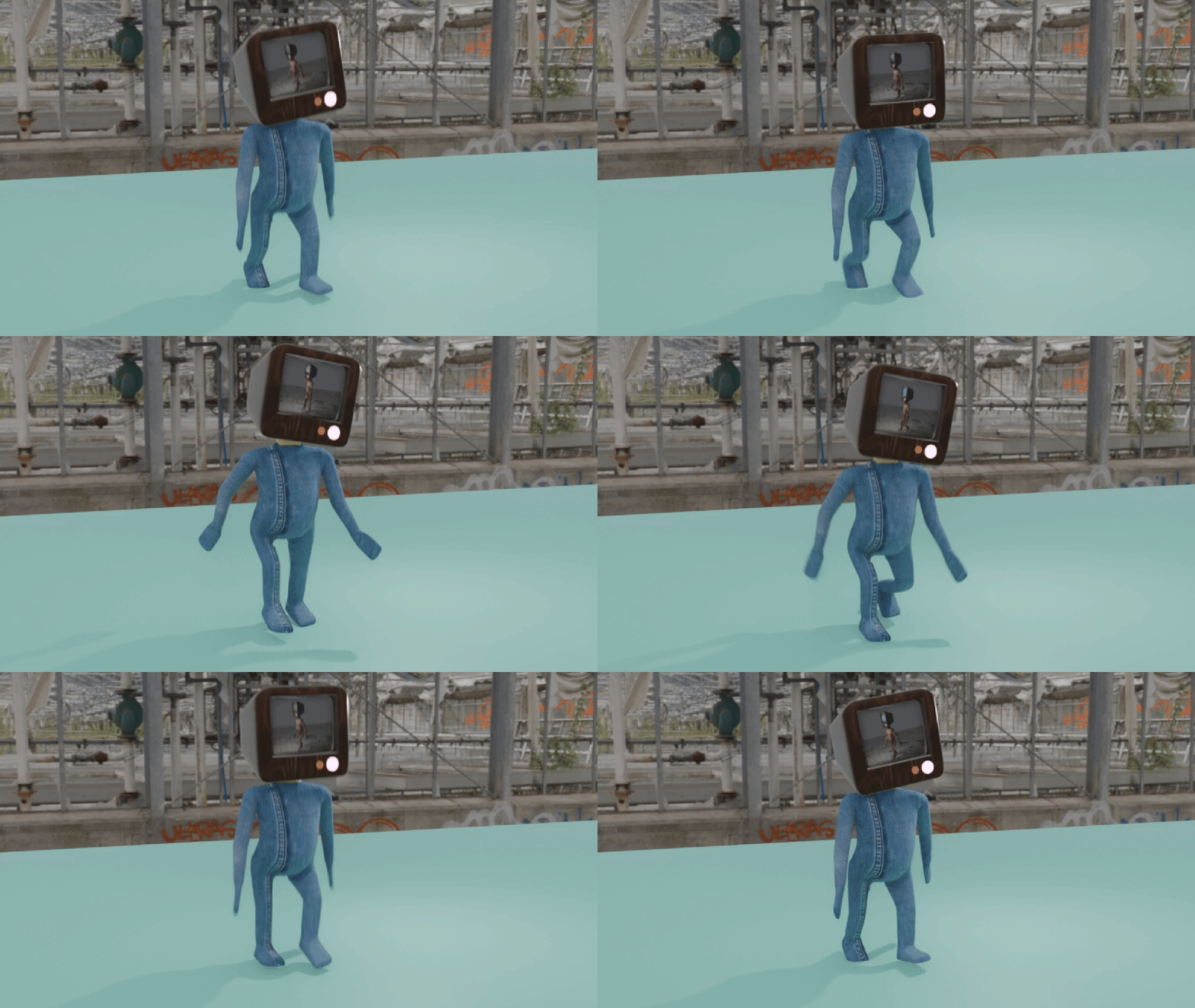
    I went a bit further and animated two figures, one in gingham, the other in denim, and put the gingham figure on the screen of the denim man.

    Little man in a smart denim suit with a picture of his friend on the screen. I may have got the animation wrong somewhere, it look like it’s skipping at one point in the cycle.

    It’s sculpting next. Sounds like fun.

  • 3D printing an SEM image

    One of the things that has been rattling round my head for many years is the idea of 3D printing from an SEM image. I know, it’s a common issue and one you’ve all heard many, many times.

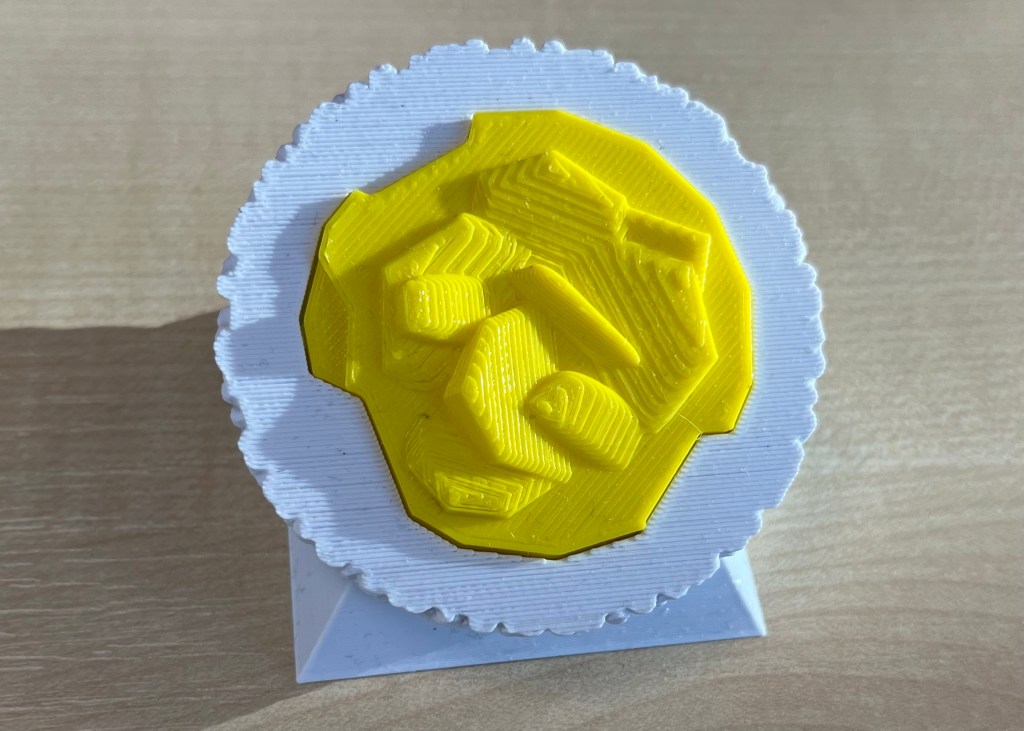
    In a previous post, I mentioned how I’d done some of this already using Blender and a bit of artistic licence. What I made needed to be printed in two part (one white, the other yellow) because I didn’t have access to a multicolour printer.

    3D printed oil in water droplet
    Original version of a 3D printed oil in water droplet. Some artistic licence required and I had to design and print in two parts. You can see the join.

    Scrolling through Blender instruction videos (as you do) I saw a post by Architecture Topics on how to convert an image into a 3D Element.

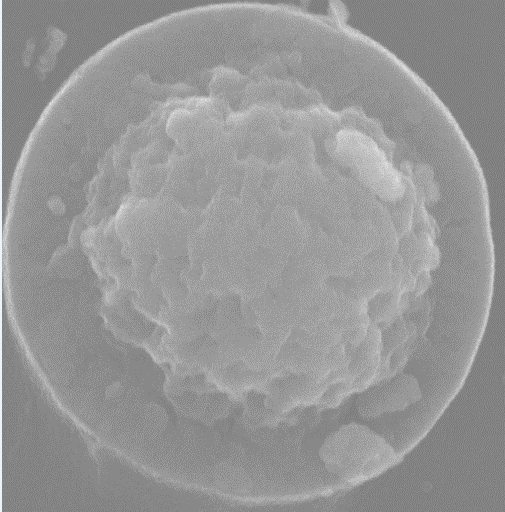
    This pinged a synapse in my brain and I wondered if the SEM of the broken oil droplet I took some years ago could be used in the same way.

    Scanning electron micrograph of a split oil droplet. I took this image about ten years ago and have been thinking about making a 3D version ever since. I can work faster. Honest.

    How hard would it be to convert the original image to a 3D Element?

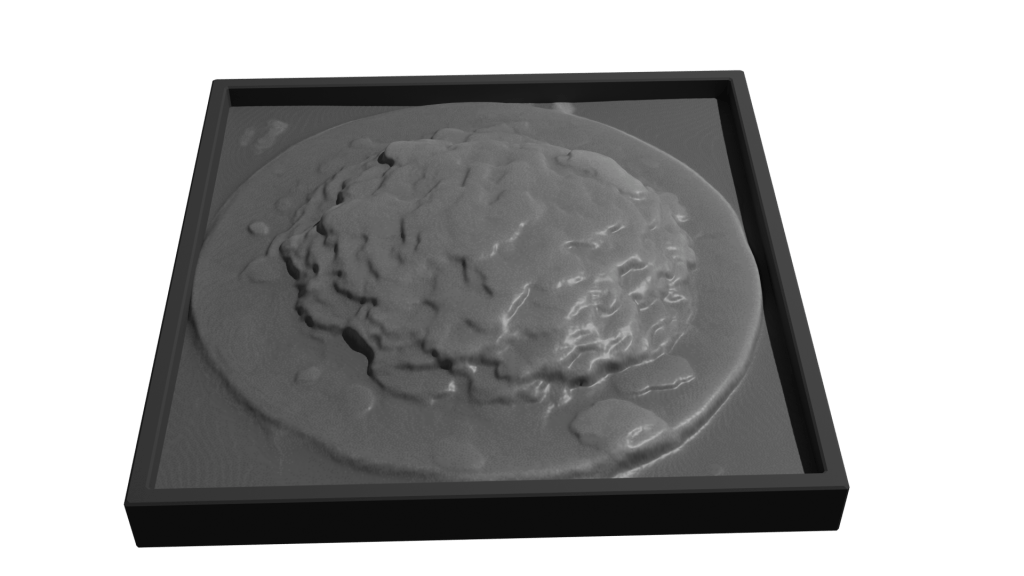
    Rendering of convertion a SEM image to a 3D element

    Rendered version of the converted image. I’ve stuck to black and white since electrons don’t do colour. I could reasonably render this with a gold effect since the sample prep involved coating with gold to get better imaging.

    It took a while, but I got there. For the final render, I put the converted image into a box to hide the ragged edges of the conversion. Also I had the opportunity to go into my old work and have a go on the 3D printer there.

    After a bit of faffing (because I’d not applied a solidify modifier to the final image) I got a .stl file that the slicer said would print.

    My first attempt wasn’t great. I’d only applied enough solidify modifier to give the final print a thin shell. To quickly fix this, rather than going back into Blender and increasing the solidify level, I set the slicer to do 100% infill.

    That didn’t work. I’d need to go back to Blender and learn how best to use the 3D toolbox that I learned about while I was doing this.

  • Blender part 2

    Blender part 2

    I started a course and, unusually for me, I paid actual money for it. It’s presented by Grant Abbitt, some of whose free video tutorials I’ve seen. I did finish the low poly well, it took me a few days (no idea how many hours) and I was pleased with the result.

    Not sure where such low poly work would find a home, but it’s good to do something creative that I think will lead to better 3D prints. I just need access to a 3D printer.

    Learned quickly how to change materials and do lighting so that you get these great effects with transparent materials. This was done on the second day of the course, maybe four hours to get this far.

    What’s so good about this course is that Grant takes you through the steps to make a thing. This isn’t unique, but I see a lot of courses that show you how to use tools in Blender and other programs (Excel, for example), but there is no context.

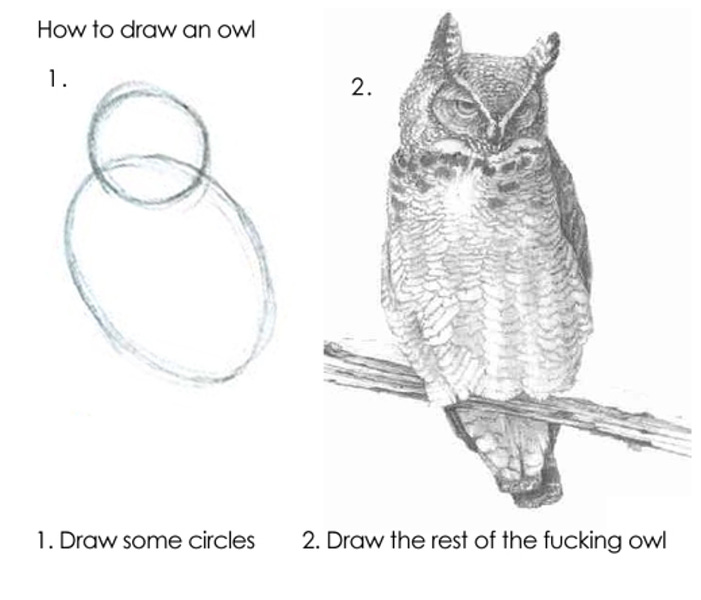
    What he also avoids is the “Draw the rest of the fucking owl” trap that I see so often. You’ll be shown how to design something, then magically it’s all lit with a background, multiple lights and a camera fly-round.

    The original “Draw the rest of the fucking owl” meme. Original artist unknown, but it’s been around since 2010. Which is medieval by internet standards.

    I got the course through Udemy, it may be available elsewhere. It’s called “Complete Blender Creator” and I reckon it’s been worth the £15. If I was making stuff in real life it would cost me at least that much to buy some clay or paper and paints.

    More to follow. There’s a lot to learn, but I’ve got time while I’m on gardening leave. I can’t spend all day looking for work when there’s no suitable jobs.

  • Blender lessons

    Blender lessons

    Taking 3D design seriously

    I’ve been working with 3D design for about two years. As a pharmaceutical scientist, I’ve been keeping track of possibilities in 3D printing tablets and other dosage forms. There’s been some interesting recent work on this and in custom design of arm casts. At my last job, we bought an Ender 3 Pro in early ’23 and set about finding uses for it.

    Ender 3D printer. This isn’t the exact one we bought.

    I used TinkerCad for most of the design work.

    https://www.tinkercad.com/

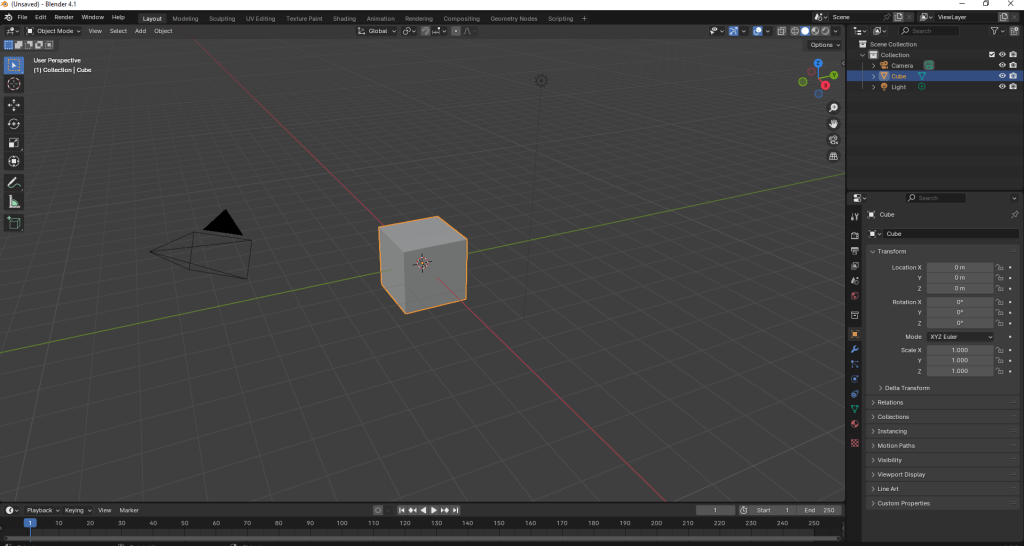
    We used it to design all sorts of things – new funnels, inserts for spectrophotometers, toroidal propellers and flexible substrates for rheology testing. But I kept seeing Blender being mentioned when I looked on YouTube for help with 3D design. But I thought Blender was scary. Just look at it!

    Blender window as it opens.

    There’s loads of stuff on there! And that’s just one window! Sculpting? UV Editing? Eh?

    But it is supposed to be a good program to learn 3d design, animation and simulations. I’d also had an idea to make a 3d print of a SEM image I took some years ago of a fractured oil droplet.

    SEM image of a fractured oil droplet. I spent over 20 years studying these things.

    This sort of thing was beyond the scope of TinkerCAD, but it turned out it was (relatively) simple in Blender. Well, I followed a tutorial on how to add things at random over a surface. I needed this because other images we took showed that there’s bumps all over the surface of the droplets. So with a knobbly hemisphere generated in Blender, I used TinkerCAD to add the rock-like frozen fractured oil interior. Then it was a matter of slicing and printing.

    Easy.

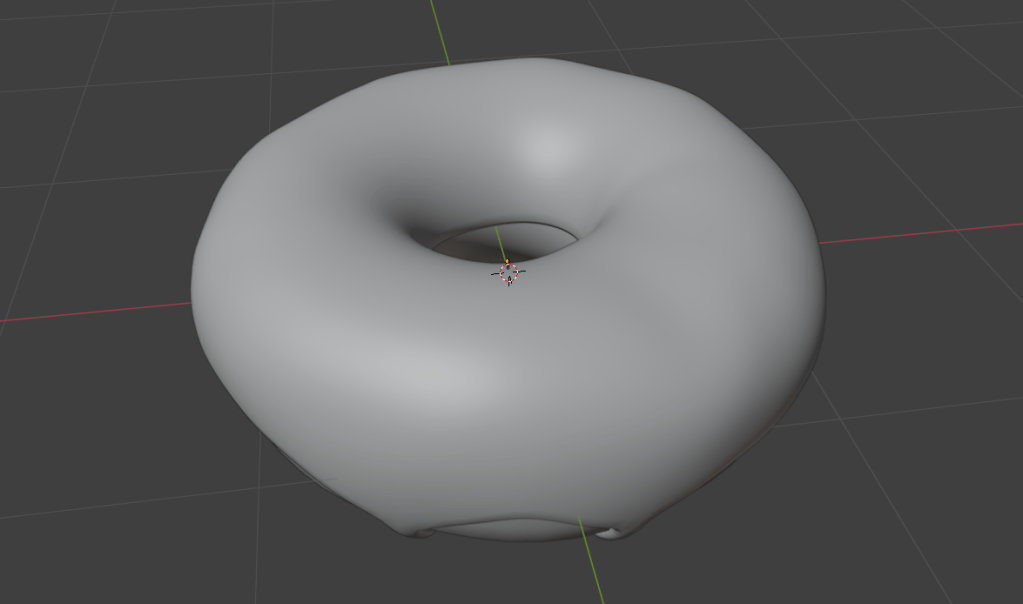
    I’d made a doughnut in September following a YouTube course (see below), which as OK I suppose.

    A doughnut made in Blender. Looks delicious!

    After faffing around a bit, I decided to give Grant Abbitt’s Low Poly Well a try. I chose this because Grant is an excellent tutor. He’s clear, doesn’t skip over bits (no ‘draw the rest of the owl’ nonsense) and has been using Blender for 20 years. He’s also English, so he says ‘zed’, rather than ‘zee’.

    So I’m going to see how the low poly well goes. This will be under ‘Blender’ in this blog.