Tag: Blender

I’ve been learning how to use Blender for a while. I will post my progress as I try to make a proper go of getting good.

  • Slicing a cube and smashing a vase

    Another ‘Blender goes wrong’ video.

    This is a combination of two tutorials from YouTube. The first was making a twisted vase, the second was making a laser effect and slicing a cube. The ‘problem ‘goes wrong’ stems, once again, from the director rushing through without checking everything is safe.

    One of the things people do with 3D printers is print vases. They aren’t normally useful as vases since the prints are difficult to make waterproof, but they can be decorative.

    So a simple twisted vase was a thing I made a month or so ago. I used a deform modifier and multiple twisting modifiers to make the vase into an interesting shape.

    Model of a twisted vase. This might be suitable for 3D printing.

    Laser cube cutting

    The cube cutting was a more complex proposal. Although the instructional video by “Blender Made Easy” was about 30 minutes long, it took me rather longer than that to finish.

    However, this tutor is one of the good ones. There’s no ‘rest of the owl’ here, the tricky parts are gone through and exactly recreating the cube cutting can be done even by a bear of little brain.

    The animation is a bit of smoke and mirrors. The first thing to do is slice a cube. Then give the pieces physics (rigid body physics in this case) and animate when they become active parts of the scene. Once they are active, they obey gravity and fall to the floor.

    Then you make a path for the laser cutter to follow before modelling a laser pencil and the laser beam itself, which follow the path. This is the cutting of the cube and is the most basic version that could be used as an animation.

    Raw setup of the cutting video. The vase is in place, floating in air. The dark lines that criss-cross each other is a continuous path that the laser pen follows and cuts the cube and the vase.

    The use of ‘dynamic paint’ added an extra layer. Here, the laser beam is made to act like a brush and ‘paint’ a red glow on the cut surfaces of the cube. This is made to fade over a short time but it looks like the pieces are heated up by the laser then cool down.

    Sparks add a further layer. This is done by generating particles and turning those particles into small yellow spheres. Adding motion blur to the animation means that the sparks don’t look like spheres in the final version.

    Sparks added to the cube cutting. On the left, motion blur has been added to hide the fact that the sparks are small spheres. One the right, without motion blur the sparks look more like spheres. You also get to see the details I added to the laser pen, which is a bonus.

    To make the thing more my own, I changed a few things. First, the path that the laser takes is changed to go above the cube. Second, a vase is positioned and cut by the laser. Then background bits – a marble slab for the vase to sit on and a few more vases to fill out the scene.

    The wall is modelled on many walls I have seen in various labs. Bumpy green plastic panels separated by smooth plastic joints gives a workshop feel to the animation. They also help give a scale to the whole animation.

    Finally, sounds to make the whole thing come alive. Sound effect of the laser cut, metal sliding on metal and the vase shattering were all available on Pixabay. There’s a background of ‘workshop noise’ that fills in the soundscape. It was a matter of getting the timing right before rendering the whole thing and putting it on YouTube.

    Final cut

  • Baaa Humbug!

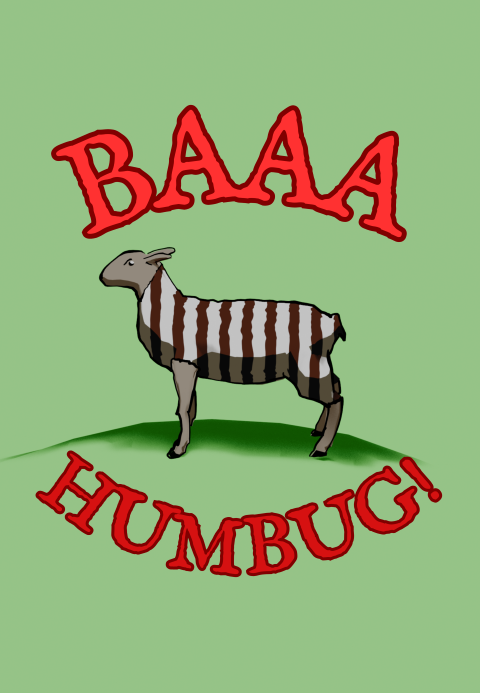
    Baaa Humbug!

    A Heath Way Prints design.

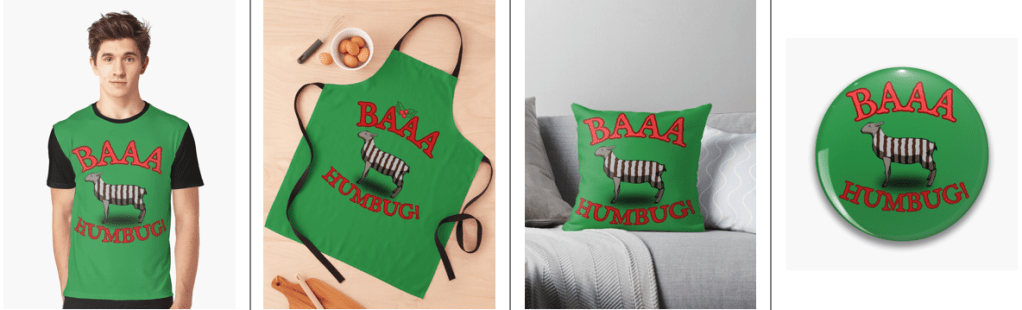
    The ‘Baaa Humbug!’ design on a t-shirt, apron (with holly), cushion and pin badge.

    This was an idea from Mrs S – a sheep with a humbug1 body.

    Sheep building

    The modelling of the sheep was the main challenge here. I decided to go for a ‘low poly’ design, similar to the fearsome dinosaur I made as part of the course I did in March ’25.

    Returning to the University of YouTube, I followed a video by Ryan King, who is a reliable tutor and another one who doesn’t skip the fiddly bits. He made a duck, a shark and a dog in this tutorial, the dog was the best one to follow for the sheep, what with having four legs and all.

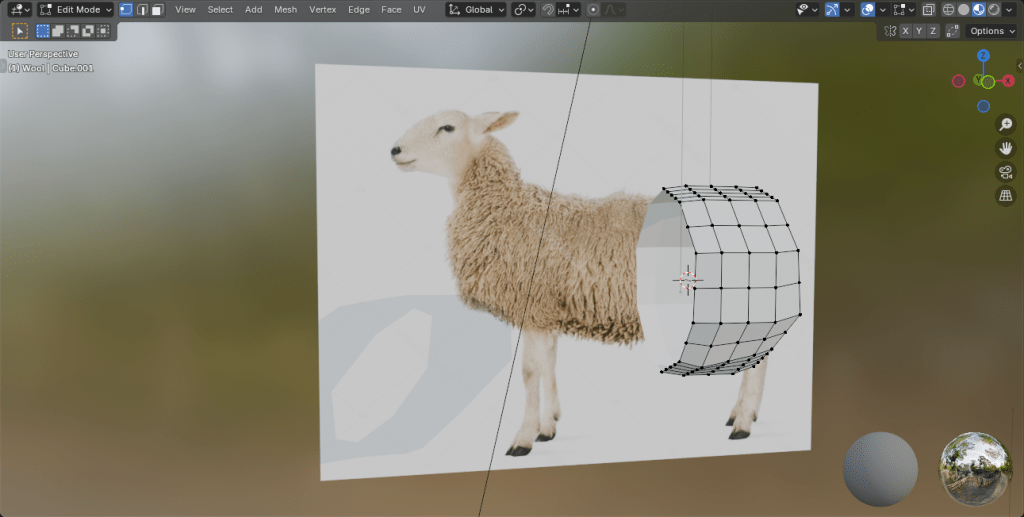
    Making a low poly sheep is an exercise in making a tube and shaping it to match a sheep (I used a photo of a sheep as a guide) and then adding legs and ears.

    The start of the sheep construction process. Using a side-on view of a sheep, a tube is extended and squidged to make a sheepish body. Legs are added by extruding from the sides.

    Shading

    The shading was the complex bit. I wanted to have a cartoon look to the sheep because that’s an aesthetic I like and also makes the final print a bit clearer.

    I’ve done quite a lot of cartoon shading over the last couple of months, the tricky part was getting more than one colour onto a cartoon.

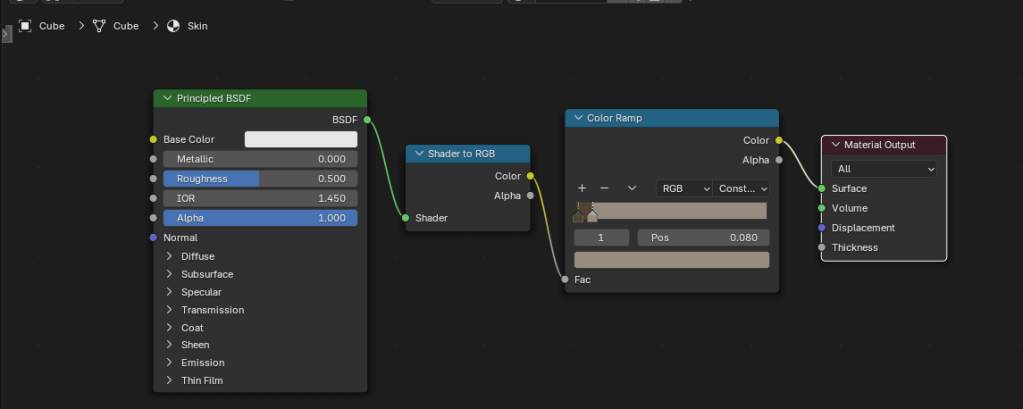
    The basic cartoon shader. It converts the original colour to RGB (not sure why), then the colour ramp restricts the colours to two shades, dark and light. This gives a cartoon shading effect that I’ve grown fond of.

    Doing one colour is easy enough, it’s two shader nodes. Adding a striped pattern and getting the stripes to mimic a humbug was a bit of a thinker. In the end, I found a way of doing it using various shader nodes.

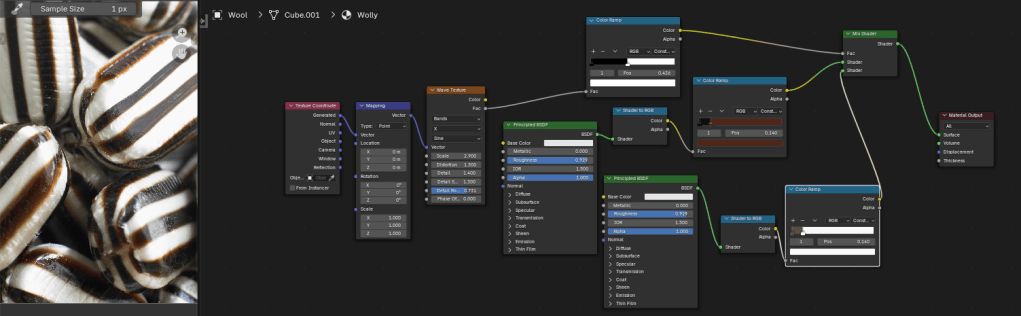
    The humbug shader. I used a photo of humbugs to get the right colours. This is a bit more complex than the single shader, since the system needs to be told where to put the brown and white colours.

    So we can go from a plain white or brown sheep to a striped sheep. Then we need to add outlines.

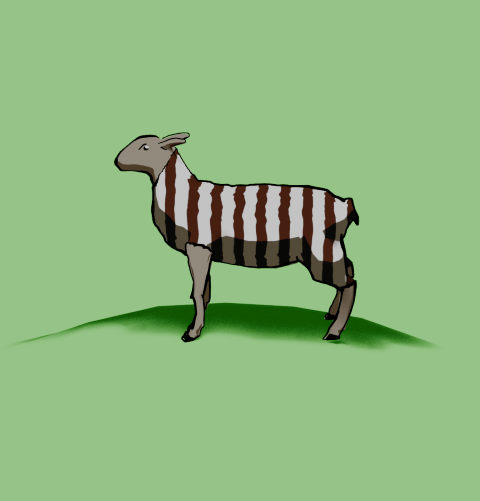
    From left to right, a plain white coat, a brown coat (colour for the humbug stripes), stripes added and then with outline and frown drawn in.

    Outlines

    I’d previously used the system’s grease pencil to add lines to cartoons and it works well. For the cartoon mech, I just thickened the lines a bit but otherwise didn’t adjust the grease pencil added by Blender.

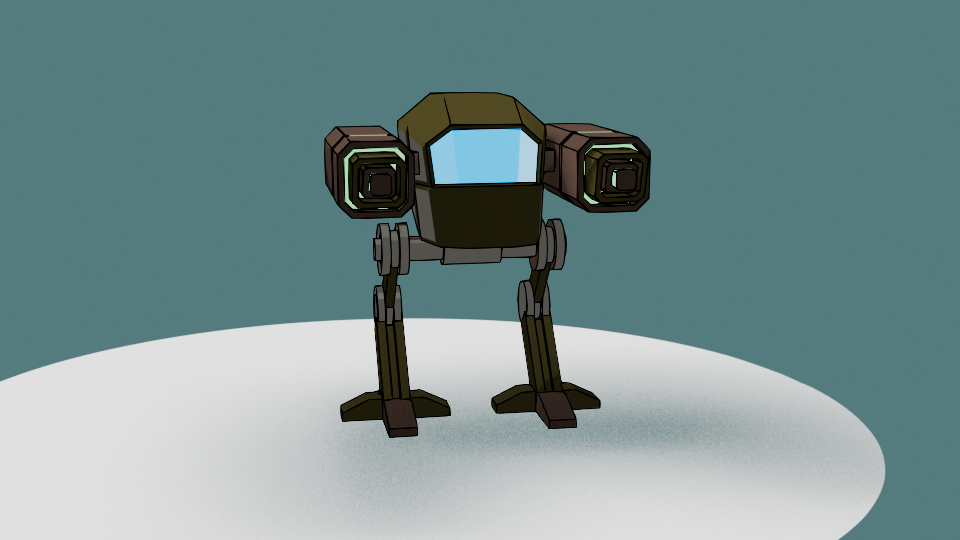
    Another variation of the two legged mech I made a few months ago. This cartoon version has ‘scene line art’ added, automatically adding lines to the model.

    Well, most of the time it works well. But this time it didn’t, adding lines where I didn’t want them and missing out other lines. So I had to draw the lines myself. I’m part way through an 2D animation course so I had learned about adding lines and editing them already. I applied this new knowledge to the sheep, using a drawing tablet I bought a few months ago. This meant I actually learned how to use it.

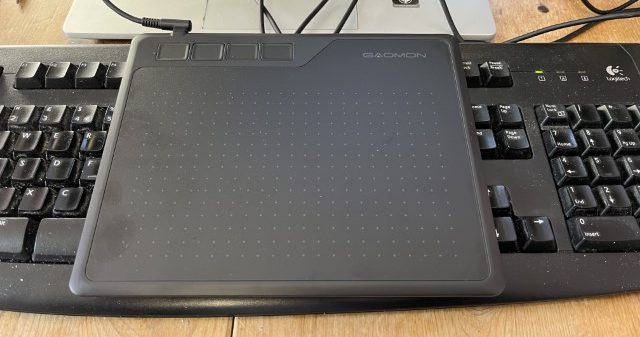
    My graphics tablet. This one cost £24, the ones professionals use can be in the hundreds of pounds, even over a grand. I’ve also just noticed that there are thumbprints on the left side where I hold it.

    Once I’d drawn the lines I was able to adjust them. Because I’m not much of an artist and I’m not used to the graphics tablet, the lines weren’t perfect. However, because they are digital, the lines are editable, so I could move and stretch them until I was happy with the look. This is similar to the way I sculpted the virtual clay to make Bob the demon and Steve the orc. I didn’t want it to be too perfect, just believably hand-drawn.

    Somehow, I managed to get the sheep looking really grumpy as well. A fortunate accident with the line I drew for the eye ridge.

    Final design

    I exported the final sheep into Canva to add the background and lettering. The font is IM Fell English, based on an 18th century script and so perfect for an olde worlde feel.

    One version of the “baa humbug” design.

    Because I’m using RedBubble rather than Etsy, I can offer the design on a variety of things. In RedBubble I can also specify the background colour to be used in the designs; I can do that in Canva, too, but the shape of the different products means that sometimes there can be white space at the sides or the design looks too small on the product.

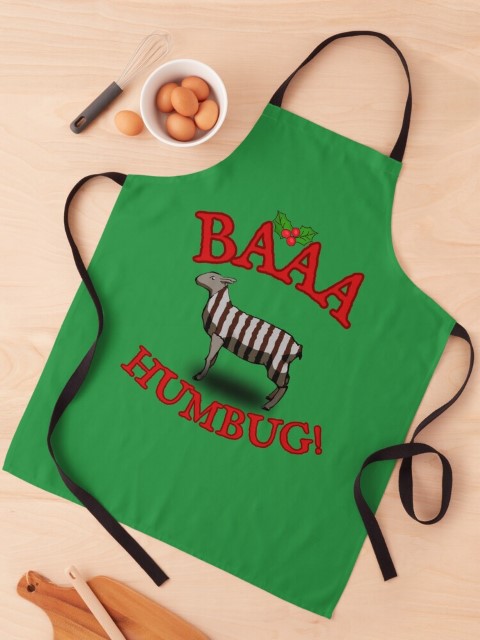
    Baaa humbug design on an apron.

    At the suggestion of Mrs S, I added a sprig of holly to the design that goes on the apron. Not sure why, but it works for the apron but not for the other items such as t shirt and cards.

    1. Humbugs are striped, mint-flavoured sweets. ↩︎
  • Game over!

    Game over!

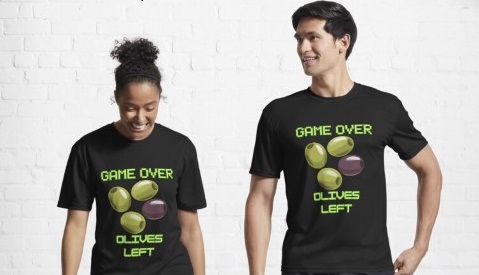
    Heath Way Prints design.

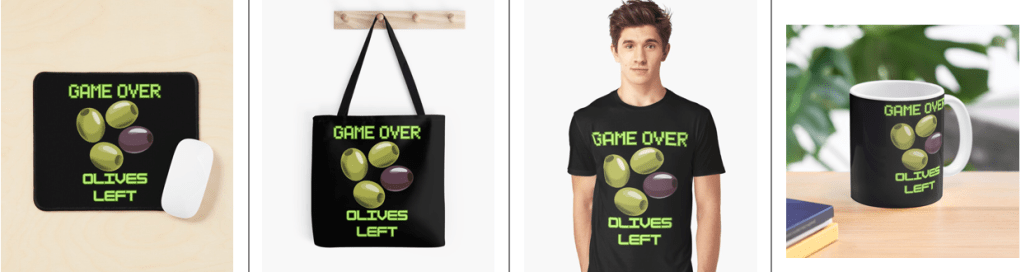
    This was a cryptic crossword clue I thought of some time ago, and realised recently it would make a good t shirt/ mug/ mouse pad etc.

    Canva design

    I think it took me about 20 minutes to do this, all in Canva. Deciding on the fonts to use was the tricky part. What I really wanted for the ‘Game Over’ part was the sort of font used in Rollerball1 and throughout the 1970s to indicate that a computer was involved. There is a font called Rollerball, though Westminster is also available for Word, but I couldn’t work out how to get that in to Canva. So I used Retropix for the Game over, and HK Modular for the Olives left. A nice neon green, reminiscent of the old green screens I spent my early computer years staring at completed the text design.

    Example text for the Westminster font.

    The olives were taken from a Canva catalogue of designs. There were plenty of olive designs to choose from, the three green and one black in a cartoon style was the best, and similar to what I might have designed myself.

    Once I was happy with the design I downloaded it from Canva then uploaded it to RedBubble. Making sure the design looked right on all the products and writing the description and keywords still takes me some time, but I hope I’m getting better at this.

    I finished a social media marketing course in November, this taught me several things I had hoped to learn. How to build a website, the importance of keywords and how to do search engine optimisation. I’m still a beginner, but I now understand why you need to spend time doing the SEO, though the rules change all the time.

    Cryptic crosswords

    The clue I had knocking around was:

    Game over for oil producers? (6)

    The answer is ‘OLIVES’, because when you have no lives left you finish a game, and olives produce oil. The O and the zero look similar, and that’s how cryptic crossword clues work. I sometimes struggle with cryptics, I attempt the Private Eye one and sometimes I can finish it, other times I can’t get more than two clues.

    Another clue I made up a while ago:

    Advances in fantastic trousers (5,7)

    Comment if you know the answer.

    1. A 1975 film starring James Caan, featuring the titular ultra-violent sport and a lot of moody electronic music, set in the far-off dystopian future of 2018. ↩︎
  • Return of the Mech

    Return of the Mech

    I’ve finally figured out rigging, which means I can animate the mech I made a few months ago. Yay me!

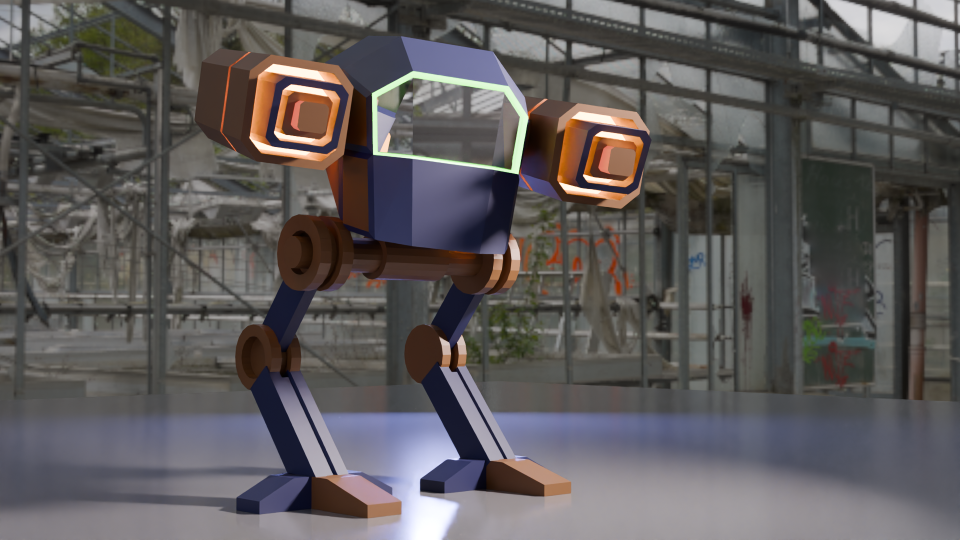
    Stylised two-legged mobile gun.
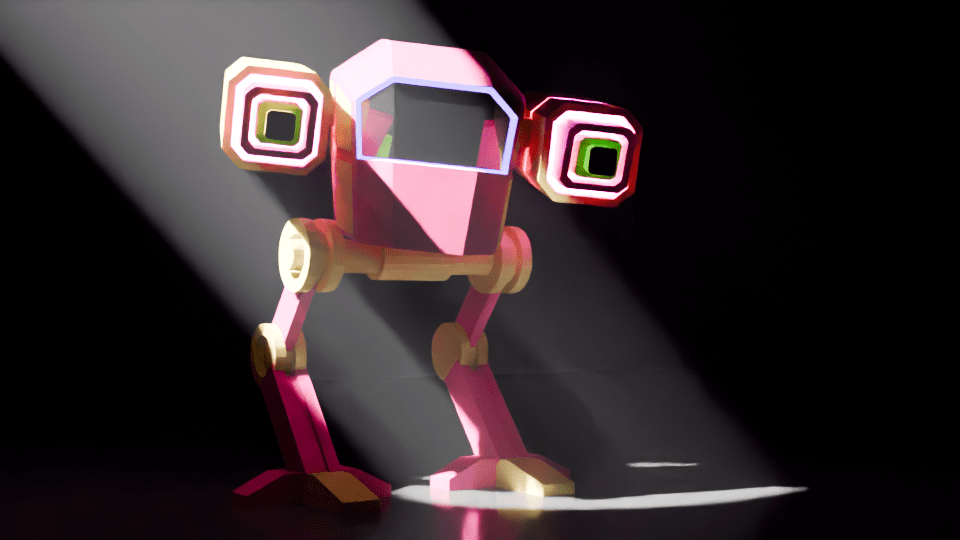
    Completed mech with colouring and glowing guns. The green glow around the windscreen is a classy touch.

    The mech I used had a bit of a different colour scheme, I have dubbed it ‘the fabulous mech’ due to the glittery guns and pink glow around the screen.

    Rigging involves adding bones to the design, linking those bones to the model, and moving the bones instead of moving the mesh of the body. This is just like how Aardman animate their models for stop motion.

    Blender viewport showing a two legged mechanoid with bone rigging.
    The grey shapes are the ‘bones’, they control parts of the Mech model. You can rotate the bones to make the head move and move the bones in the legs to make it walk.

    Moving the bones around using keyframes to control the timing of the mech and stuff. First trial was to have the Mech look around, notice the camera and step towards the camera.

    Mech stepping to the camera. Mean and pink.

    Getting a walk cycle for the thing was a bit fiddly. Moving the legs in a bird-like manner is easy enough, but getting the feet right and stopping them slipping needed a bit of fiddling about. Took me a while, but the result is pretty good. I wrote an Excel spreadsheet to help me with the timings of bone movement and getting the whole thing to move without ‘foot slip’, where the stationary foot moved backwards during the walk cycle.

    It’s a bit gloomy, but the fabulous mech is here to menace you!

    I’ll do some more on this later. The walk is mechanical (well, it would be). The lighting need to be improved so you can see the thing. I will add a swing to the hips and also movement of the head so it looks like the operators are searching for something.

    Stay tuned!

  • Falling cubes, tracking camera

    Falling cubes, tracking camera

    There are a few videos on YouTube (and elsewhere1) of piles cubes being dropped, weights being dropped on cubes and balls hitting piles of cubes. I’ve done one myself, and it’s quite satisfying. Destruction of things without actually wasting resources. I was asked if I was in need of some sort of catharsis. I don’t think so.

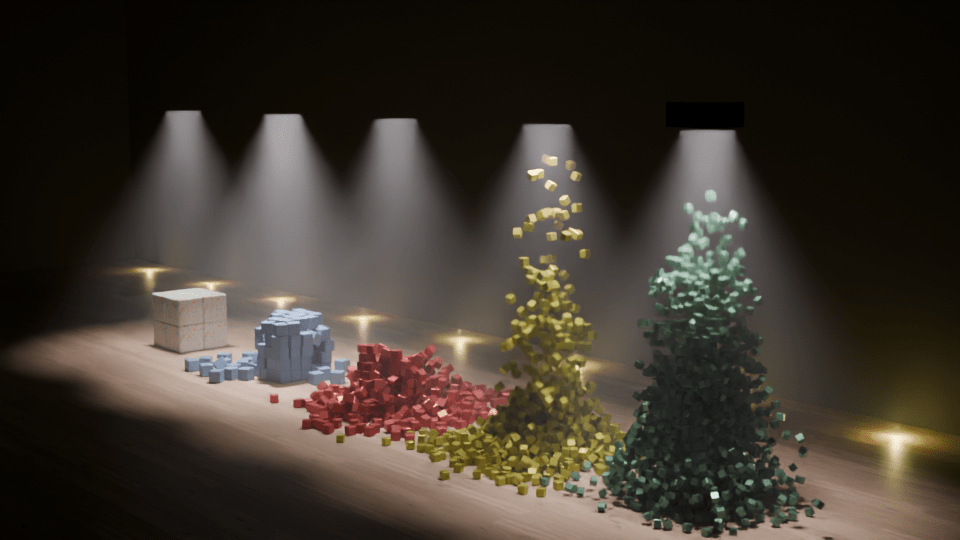
    I decided to mix it up a bit and have a series of groups of cubes dropping as the camera tracked past. The varying weights video (above) had a static camera. I rendered the different videos separately and spliced them together before adding sound to give it a bit of realism. The final bit where a flying cube hits the camera was the only camera movement I did. The shaking as the blocks hit the ground was done using an add-on called ‘camera shakify’2.

    Blocks of cubes

    First you make the cubes and then add physics. The easiest way to make a bunch of the same things is using an Array modifier, where you repeat an object a set number of times. So to make an 8 x 8 x 8 cube of cubes, I did three arrays of 8 in the X, Y and Z direction. Then the 1096 block need to be separated and given physics.

    ‘Physics’ in this sense means that the objects react to gravity and to other objects with physics. The video below shows how objects interact with ‘active’ physics, ‘passive’ physics and no physics. So the green cubes react to gravity and are stopped by the red passive objects. Passive objects don’t react to gravity or other forces but get in the way of active objects. The blue ‘no physics’ cube gets ignored.

    Initially I made four blocks of cubes: 2, 5, 8 and the 10-cubed blocks, and then set up the moving camera.

    Camera settings

    To get a camera to pan while it focuses on a moving spot you need two things. A line for the camera to follow and something for the camera to aim at. For this video, the line is a curve that runs mostly straight past the cubes and then curves around and up to finish with a view of all the fallen blocks. The camera is pointing at an ’empty’, which is an object that will not render in the final image. I animated the movement of the empty so that the camera would arrive just as the blocks started to fall.

    The camera itself has several settings, not all of which I understand. The one I do understand is ‘motion blur’, which adds a little realism to the falling blocks. The video below shows the effect in a simple scene. In the final frame of the video below you can see there is blurring of the cubes on the left and the animation looks a bit more realistic.

    Lights!

    Lights above the cubes turn on as the camera arrives. These are circular area lights, intense and powerful. I also added a ‘fog cube’ so the light beam could be seen. More lights, smaller yellow ones, and a back wall add some shape to the studio that all this is happening in. Getting this timed correctly is relatively easy, keyframes for the light intensity can be edited as needed.

    I noticed how high the blocks went for the 10 – cubed block and so I thought I’d see what happens with 12 cubed. And the cubes went everywhere. Drilling down into the narrative3, I thought that the set-up would have overlooked this and so the lights that come on as the camera tracks would be too low for the last pile and this light gets destroyed by the cubes.

    I added a cube above the light, did a cell fracture4 (only 20 pieces) and timed it so that the erupting cubes hit the fractured cubes as the physics takes over and the pieces fly everywhere. It just so happened that the end point of the camera track was just to the right of where one of the pieces flew.

    Video below is how the Blender screen looks as the final animation is playing. There are random colours added to each object so I can make them out. There is a small three-way axis that travels left to right – that’s the empty that the camera (the pyramid that travels along the black curve) is locked in on.

    Sound!

    Getting the sounds was difficult, it is usually the part I struggle with. I have various thumps, crashes and loud clicks saved, so they were easy to get. I wanted to have a director saying ‘action’ and then ‘CUT!” but could I find one? Could I bugger. So in the end I recorded myself as the director. The family don’t think it sounds like me, the microphone I used is a bit heavy on the treble.

    Two weeks after publishing it on YouTube it’s had about 500 views. The simple destruction videos seem to do a lot better than ones with a narrative. So I guess it’s back to explosions.

    1. Such as TikTok. I will post these videos there, see if I get any interest. ↩︎
    2. It shakes the camera. But you probably guessed that. ↩︎
    3. The narrative being that these demos are for real but the director is a bit hurried with his setting up and is under time and budget pressure to get the videos done. ↩︎
    4. I’d done a cell fracture demo, showing how a wall breaks with different levels of cell fracture. It’s had over 20,000 views. I guess people like things being destroyed. ↩︎
  • Pumpkin spice and shape keys

    Pumpkin spice and shape keys

    Thinking about how Hallowe’en is coming up and the fact that pumpkin spice is available in coffee shops. I’d tried to think of a Hallowe’en themed design for the shop, but had no inspiration, despite getting an asset pack from Gamedev.org that is full of creepy stuff.

    What to do? How about a fun animation? I previously did a morph animation where a banana changed into a monster truck and that got quite a few views on YouTube (2704 at the time of blogging). Not as many as the wall smash video (20,629!) but still more than some of the videos I’ve taken more time over, including the cubes and tracked camera (I’ll be blogging that one soon).

    Morphing in Blender can be done in a few ways. For the banana video I got the two models to spin really quickly then had the render stop for the banana and start for the truck while they were spinning at high revs. It looked good. But it felt like cheating. What other option are there?

    Other morphing methods

    For this one I used shape keys. All shapes have vertices, the points where the edges meet. It’s the edges that make the faces and the faces that make the shapes. Most of the time you control where the vertices are by pulling them around or by moving the whole model, but with shape keys you do things a bit differently. You take the first shape and record where all the vertices are. You then add a second shape and record where its vertices are. These are the shape keys. To morph between the two shapes, Blender will move the vertices from shape one to where the vertices are on shape two. And then you control where the vertices are on the shapes

    Changing the value of the shape key changes the shape of the object. You can animate this, so the shape can change when and how you want.

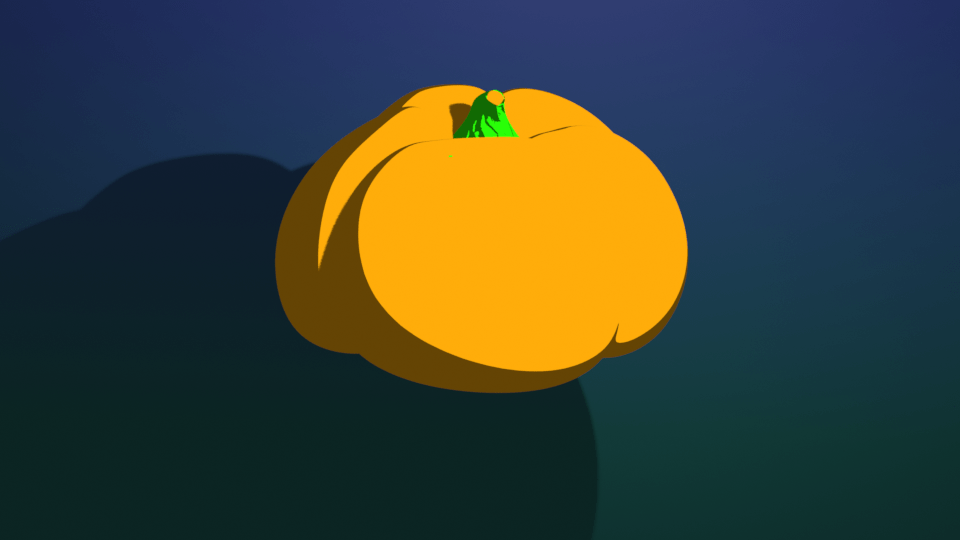
    I did the same sort of thing with the pumpkin and the chili, assigning shape keys to the two extremes. Using the animation feature, the pumpkin is made to shrink in diameter and lengthen, change colour and emerge as a chili.

    The emergence of the chili stalk looked odd (see below), the colour change wasn’t smooth so I fell back to adding a spin to the whole animation to hide the weirdness. Still a bit cheaty, but the growth of the chili is in the animation.

    Text animation

    I uploaded the video to Canva to add the text. For this sort of thing I am happier with Canva at the moment. Though I find the lack of keyframes fiddly, there are some things I can do with text that are a lot easier in Canva than in Blender1. For this, I wanted the words ‘Pumpkin’ to stay above the animation and then the word ‘Spice’ to be animated into the scene when the chili appeared. Once I was happy with that, I downloaded it and went into the Blender video editor again to add sounds.

    Sounds make all the difference

    The first go I had with the sounds didn’t go down well. Younger child gave me her “Eww” face when I played it with a squelchy sound.

    So I changed it to a slightly less organic noise and rendered the whole thing.

    When I went to upload it to YouTube, it was categorised as a normal video, rather than a short. So I re-uploaded it to Canva and created a new YouTube short. That sorted the problem. I even did a video demonstration on how to do it, in case I forget.

    Video on how to use Canva to make a YouTube short out of a video that’s wrong in some way for that format. YouTube won’t tell you what’s wrong with the video, though.

    Finished

    The final video is a nice bit of fun – it makes my youngest laugh, as long as I don’t mention the slurping jelly noise.

    1. There are pre-set animations that are very useful. With Blender the infinite variety can be a bit daunting especially if you have an animation in mind. . ↩︎
  • Wizard’s workshop

    Wizard’s workshop

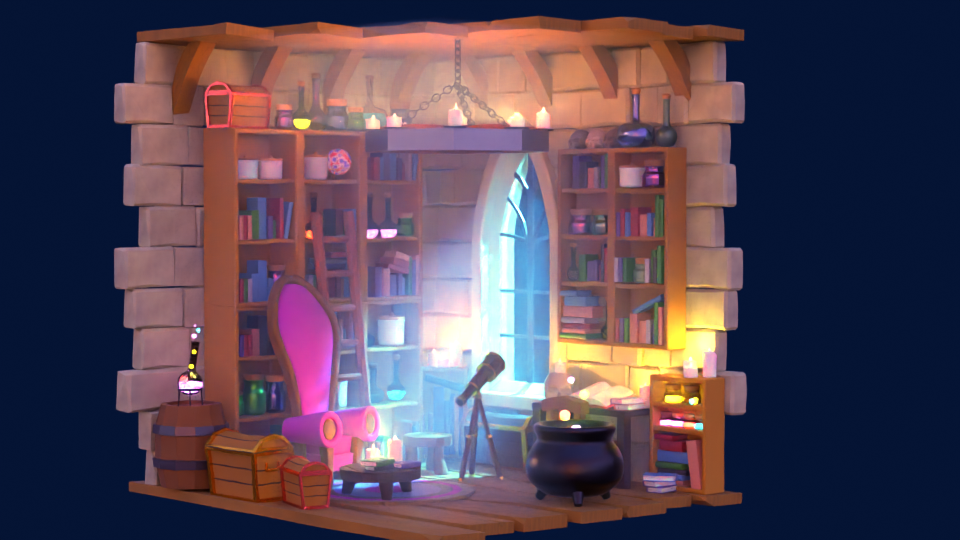
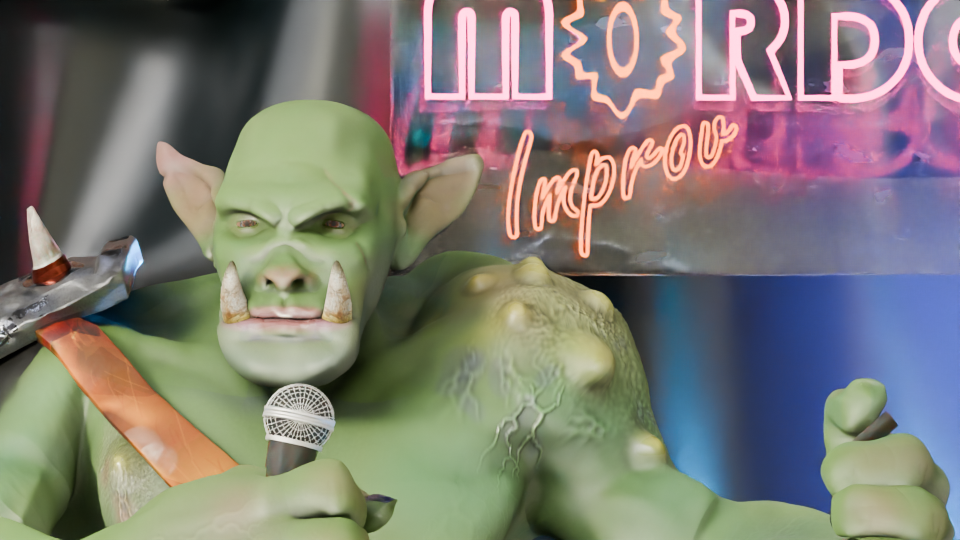
    I’ve been working on this a bit at a time since early July. It’s another course by Grant Abbitt – his Character Creator course gave us Steve the Orc, whose stand-up career hasn’t really taken off.

    I’d done a dungeon build earlier in the year, with Grant, as part of the course that resulted in the two-legged mech, the dinosaur and Bob the Demon. We built walls and a floor then populated the dungeon with barrels, crates and torches. This project is a super-charged version.

    The wizard’s workshop is an introduction to making scenes in Blender. Working with a 3D modelling system there is no issue of getting perspective wrong, but there is a need to get the proportions right in a scene. Your shelves and furniture, books, candles and other oddments need to be the correct size otherwise the scene won’t work.

    Finished workshop with comfy chair, lots of books, bubbling cauldron, mysterious liquids and a pet skull on the reading table.

    I learned quite a few useful things during the course. Modelling glass and filling it with different coloured liquids, how to randomly assign colours to similar things (the books), and creating an atmosphere in a room using mist and moonlight.

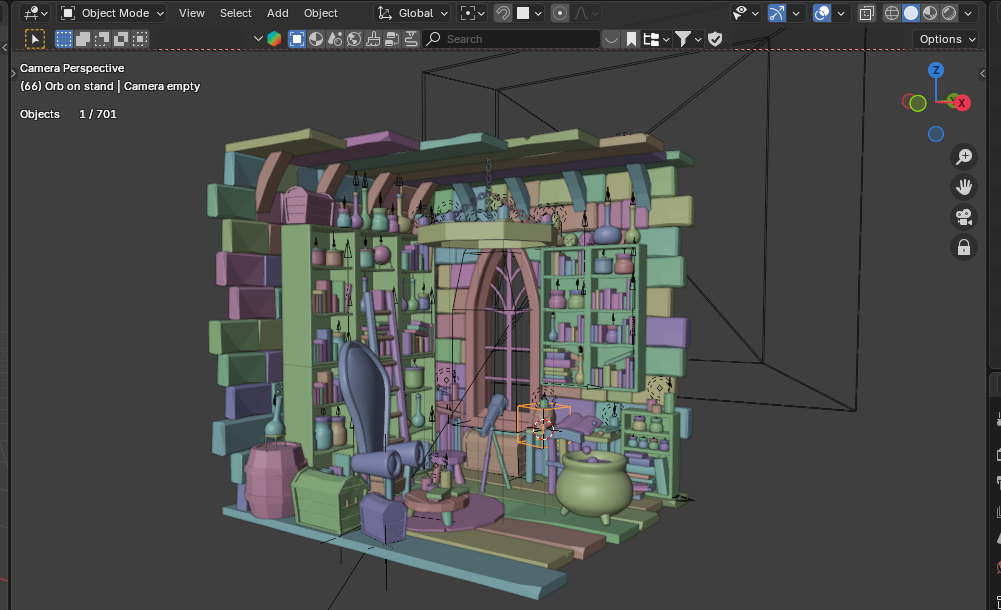
    Away from the bright colours of the final render there’s a lot of fiddly bits that will allow me to move stuff around if I get the urge. Each group of books is linked to a single ’empty’ so I can move and position several books at a time. It’s how I got the pile of books next to the cauldron. I could also animate flying books or potion bottles – it’s a wizard’s room, after all!

    Random colours for each item help to see what items are where without the computer lag associated with full render. You can also see a lot of little arrows – those help move and align multiple items

    So finally I did an animation where the camera goes round in a circle while focussing on one item. This helps you to see more of the items in the scene.

  • Blender – Dolly zoom!

    Blender – Dolly zoom!

    The return of Steve the orc…

    Playing around with what the camera can do in Blender, I was inspired to try and set up a dolly zoom. It turned out to be quite easy.

    What’s a dolly zoom?

    It’s an effect you’ll have seen but perhaps not known the name of. I think the most famous example is from Jaws, when Chief Brody sees the shark attack off the coast and the camera seems to both zoom in on him and yet he stays the same size onscreen.

    It’s a matter of doing two things at the same time. You change the focal length of the camera from wide to close and you also physically move the camera away from the main subject. To do this with a physical camera you need to have the camera mounted on a track (or dolly) and change the focal length to zoom in on the subject. Hence, it’s a dolly zoom.

    In real cinema this would need at least three people, perhaps four. The camera operator and the focus puller would be on the camera mount, and one or two big chaps (the dolly grips) would move the camera and coordinate with the focus puller and the director to get the smooth effect the director wants.

    For computer generated animation, it’s all a lot easier. You decide where you start from, add an animation keyframe once you have the scene how you want. Keyframe camera position and focal length. Then set the next keyframe for the end of the effect, reposition the camera and set the focal length so that the main subject is the same size as before. Set the keyframes and play the animation.

    Writing it down makes it seem a lot more complex than it is.

    If you’ve not got it quite right, it’s a quick job to change the timing, camera position or focal length. Much easier than doing it for real.

    Let’s give it a go

    To test the idea I set up a simple scene. Three blocks to represent the main subject and two things a bit further back and a white picket fence to the back of the three blocks. The ground is a slightly uneven plane with a sand colour and the sky is an image I got from Poliigon.

    To get an idea of how this looks when you’re in Blender, I learned how to do a screen record (I used ShareX for this) and set up a top-down view of the scene.

    Then I tried it on Steve the orc doing his failing stand-up. Steve has just realised the next five minutes is all dwarf jokes and a deputation from Khazad-dûm has just walked in.

    This type of dolly zoom is used to give an unsettling feeling to the scene. In the Apple TV series Severance it is used to indicate the change between ‘outer’ and ‘inner’ personalities.

  • Wall break demo

    Wall break demo

    I used the ‘cell fracture’ add-on to break up the anvil in a previous video. The video below pulls back a bit from the set-up I used for the second part of the inflation (the popping of the anvil) so you can see that the pink anvil starts breaking up immediately and falls to the floor before changing back to the metallic texture.

    The grassy scene behind the polka dot ‘studio’ is a HDRI (High Dynamic Range Image) and it’s used to give ambient light to a scene.

    I thought it would be a good idea to make a demo video to show how the number of cells you break something into affects how the demolition looks.

    To make this, I first set up a concrete wall and a nice, shiny checked floor. I also made a rusty metal ball to act as the object that smashes the wall and set up the camera to get a good view of the full event. This would be the basis for the six animations that make up the final video.

    For each of the animations I changed the number of pieces that the wall would be broken into. This is the essence of the video, and was simply a matter redoing the wall break-up (takes a few seconds) and then rendering the animation (about 10 minutes for each part).

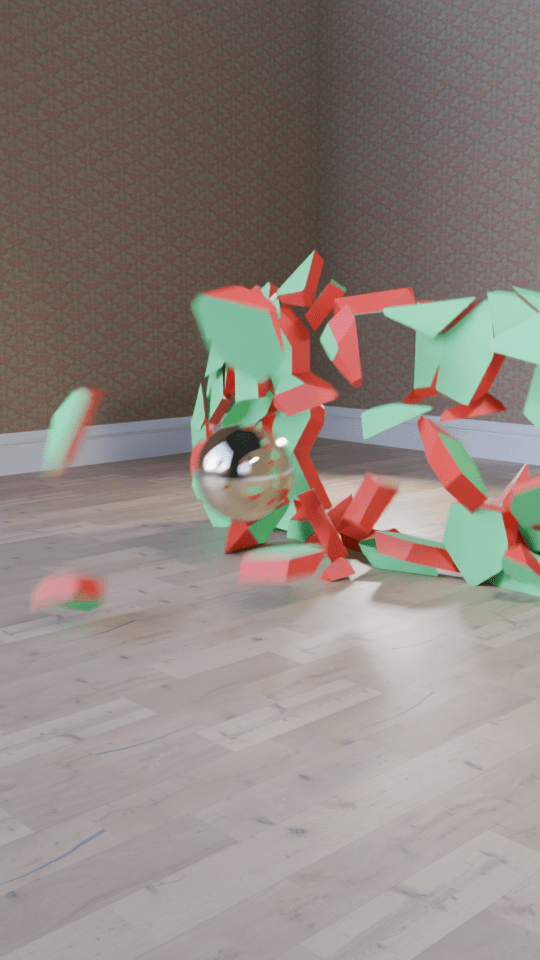
    This is how the wall looks when it’s been broken up into 100 cells. When the ball hits the app calculates where the bits will flu out to. Then it’s up to me to add sounds.

    I then used the Blender video editor to make one video from the six separate animation. Once that was done, I had to find out how to add text to a video. It turned out that is was easy enough using the Blender video editor, you need to set the font and position of the text and use visual editing to set when the text appears. All of this was fairly intuitive now that I’ve used the editor for a while.

    The most complex part was the audio. What I wanted was a series of crashes that conveyed how the size of the particles decreased but the number increased. After a bit of searching I found a two-minute audio of a wall being demolished by a wrecking ball. Some parts were louder and sounded more like a wall being smashed to pieces, others were more like a few pieces being knocked from a wall. I just needed to cut bits out and, for some of the parts, layer up the audio so that there was more noise of crashing concrete because there were more pieces being generated.

    I also put the full audio in the background, to make it sound like an ongoing process at a building site.

    The very last thing I had to do was make sure the video would show as a ‘short’ on YouTube. I uploaded the video that was generated by the Blender Video Editor, but that was categorised as a normal video. So I used Canva to force the video into a ‘Short’ format using a template and that edited video is now on YouTube as a ‘short’.

  • Inflating anvil – part 2!

    Inflating anvil – part 2!

    Changing up a video I made a few months ago. The inflating anvil was a fun little thing I did in June, an anvil inflating and floating out of shot.

    I made two changes to the initial inflation stage. First, I changed the background to polka dots and second I added a shading change so that the anvil turned from a metal anvil to a plastic balloon.

    The easiest way to add the popping was to make another animation using the same background and camera setup, do the break-up and fall as a separate animation and edit the videos together when I added the sound effects.

    The initial break-up after the ‘pop’ happens off camera. There’s an add-on available in Blender that lets you break up an object into random chunks. This is great for breaking walls, smashing up objects or popping inflatable anvils.

    Using the visual video and sound editor in Blender, it was easy enough to edit the two videos together. Three sound effects were used. Inflating balloon and balloon pop were both from Pixabay. The clattering is from the BBC sound archives – all of the metal falling sounds on Pixabay were too hollow, they sounded like coins or cans and I wanted a heavy metal sound.

    What I also had to do – and forgot originally – is reset the aspect ratio to square so that YouTube sees this as a ‘Short’ rather than a full video. Shorts get promoted in the YouTube algorithm in a different way and it’s a lot easier for people to see them. This has the unfortunate side effect that the video looks a bit odd here in the blog.