Thinking about how Hallowe’en is coming up and the fact that pumpkin spice is available in coffee shops. I’d tried to think of a Hallowe’en themed design for the shop, but had no inspiration, despite getting an asset pack from Gamedev.org that is full of creepy stuff.
What to do? How about a fun animation? I previously did a morph animation where a banana changed into a monster truck and that got quite a few views on YouTube (2704 at the time of blogging). Not as many as the wall smash video (20,629!) but still more than some of the videos I’ve taken more time over, including the cubes and tracked camera (I’ll be blogging that one soon).
Morphing in Blender can be done in a few ways. For the banana video I got the two models to spin really quickly then had the render stop for the banana and start for the truck while they were spinning at high revs. It looked good. But it felt like cheating. What other option are there?
Other morphing methods
For this one I used shape keys. All shapes have vertices, the points where the edges meet. It’s the edges that make the faces and the faces that make the shapes. Most of the time you control where the vertices are by pulling them around or by moving the whole model, but with shape keys you do things a bit differently. You take the first shape and record where all the vertices are. You then add a second shape and record where its vertices are. These are the shape keys. To morph between the two shapes, Blender will move the vertices from shape one to where the vertices are on shape two. And then you control where the vertices are on the shapes
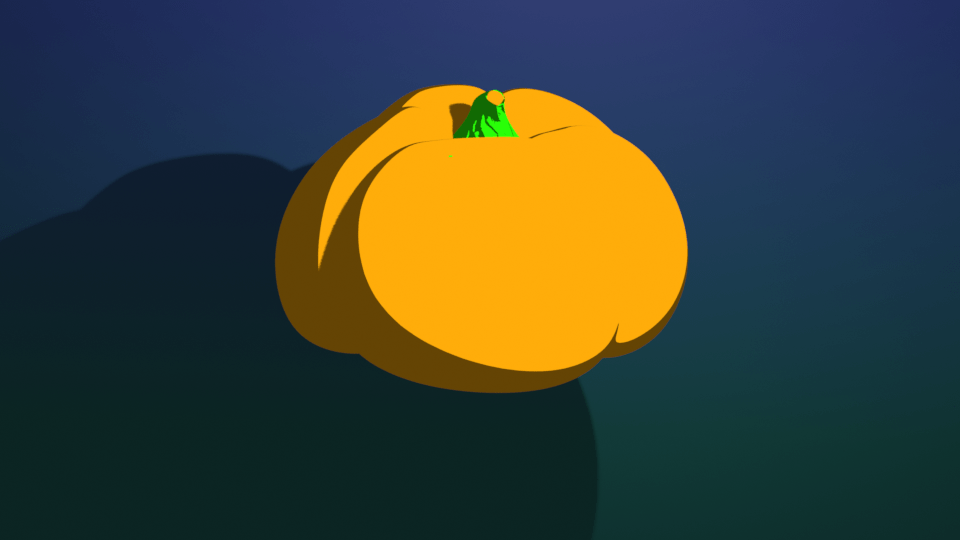
I did the same sort of thing with the pumpkin and the chili, assigning shape keys to the two extremes. Using the animation feature, the pumpkin is made to shrink in diameter and lengthen, change colour and emerge as a chili.
The emergence of the chili stalk looked odd (see below), the colour change wasn’t smooth so I fell back to adding a spin to the whole animation to hide the weirdness. Still a bit cheaty, but the growth of the chili is in the animation.
Text animation
I uploaded the video to Canva to add the text. For this sort of thing I am happier with Canva at the moment. Though I find the lack of keyframes fiddly, there are some things I can do with text that are a lot easier in Canva than in Blender1. For this, I wanted the words ‘Pumpkin’ to stay above the animation and then the word ‘Spice’ to be animated into the scene when the chili appeared. Once I was happy with that, I downloaded it and went into the Blender video editor again to add sounds.
Sounds make all the difference
The first go I had with the sounds didn’t go down well. Younger child gave me her “Eww” face when I played it with a squelchy sound.
So I changed it to a slightly less organic noise and rendered the whole thing.
When I went to upload it to YouTube, it was categorised as a normal video, rather than a short. So I re-uploaded it to Canva and created a new YouTube short. That sorted the problem. I even did a video demonstration on how to do it, in case I forget.
Finished
The final video is a nice bit of fun – it makes my youngest laugh, as long as I don’t mention the slurping jelly noise.
- There are pre-set animations that are very useful. With Blender the infinite variety can be a bit daunting especially if you have an animation in mind. . ↩︎
 Grim up North Heath